
Guide
Home lab blog on a static website: Astro, Nginx Proxy Manager on a Raspberry Pi, served from Cloudflare's cache
Published · Updated · Discuss on Hacker News
Discuss on Lobsters
I wanted a low-maintenance, fast static website for the things I’ve learned in my home lab. I wanted to host it from my Raspberry Pi, but not risk it getting flooded by requests, especially if I post it on Hacker News, where you get a flood of requests. In the end Cloudflare seemed like a good choice to cache it, even though it still pulls from the Pi. It also keeps my Pi’s IP address somewhat private: the blog’s name doesn’t expose it. The Pi 5 already runs Home Assistant OS with Nginx Proxy Manager (NPM) in front of my apps, so the site is a folder of static files on the Pi: no CMS, no database, no CI runner. I write a post in Markdown on my laptop, and one command builds it, checks it for anything that would identify my family or my network, and swaps it into place. The visitor numbers come from Cloudflare too, so there’s no tracking script and no cookies.

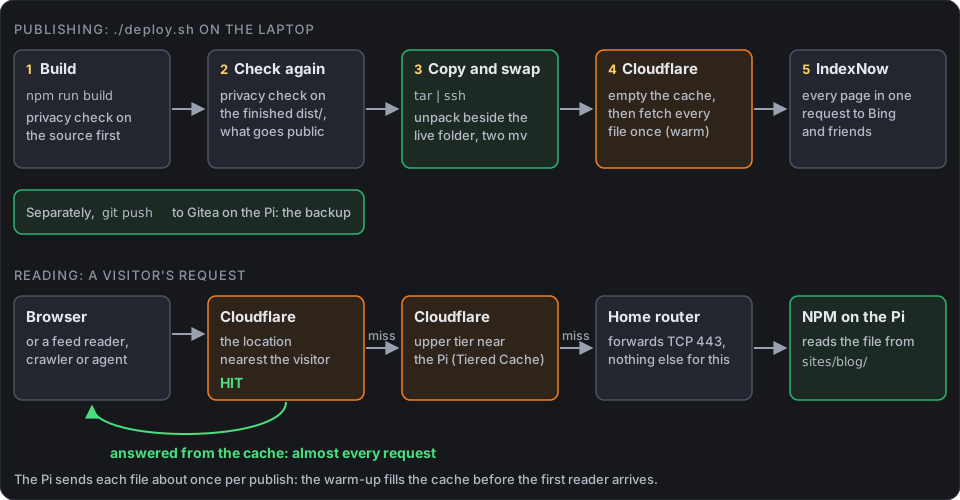
Both paths. Publishing touches the Pi once; reading almost never does.
What you need
Section titled “What you need”| Part | Mine |
|---|---|
| A laptop with Node.js | Node 24, Astro 7 with Starlight, Astro’s docs theme |
| A git server for the source | Gitea on the same Pi. It’s the backup, and it goes into the nightly Home Assistant backup |
| A small always-on machine with nginx | Raspberry Pi 5 with Home Assistant OS and the Nginx Proxy Manager app |
| SSH from the laptop to the Pi | The Advanced SSH & Web Terminal app, with a key |
| One port forward | TCP 443 to the Pi, the same one my client certificate setup uses |
| A domain on Cloudflare | Free plan: DNS, the proxy and cache, and the analytics |
| A TLS certificate for the public names | Let’s Encrypt by DNS challenge, made and renewed by NPM |

My Pi 5, drawn. It holds the files for this site; Cloudflare answers almost every request for them.
Step 1: An Astro site with the Starlight theme
Section titled “Step 1: An Astro site with the Starlight theme”Each site has its own git repo: one for the home page at jacq.cc, one for this blog, and one per small web app later, under jacq.cc/<app>/. I picked Astro because I want JavaScript components when a post needs one, and the output is still plain HTML. For the blog I added Starlight, Astro’s docs theme, because most posts are how-to guides: it brings a sidebar, a table of contents per page, copy buttons on code blocks, and search with Pagefind, a static index built with the site, so search needs no server either.
npm create astro@latest -- --template starlightnpm run dev # preview at http://localhost:4321A post is a Markdown file, and its path is its URL: src/content/docs/guides/my-post.md becomes /guides/my-post/. There are two kinds: guides, which I keep up to date, and notes, written once. I extended Starlight’s front matter with a publish date and a list of changes, and replaced two of its components so each post shows Published and Updated dates under its title and its change history at the end:
schema: docsSchema({ extend: ({ image }) => z.object({ cover: image().optional(), // the picture next to the post on the home page coverAlt: z.string().optional(), pubDate: z.coerce.date().optional(), // one line per change a reader would care about; the newest date is "Updated" changes: z.array(z.object({ date: z.coerce.date(), note: z.string() })).default([]), }),}),The build (npm run build) writes everything to dist/: 202 files and 4.9 MB for this blog with this post, most of it images and the search index.
Commit a draft to a branch as soon as it exists. An untracked file is gone after a git clean, and I lost drafts that way on 16 October. If it does happen, Astro’s content cache in .astro/data-store.json still holds every post’s Markdown from the last build: copy it before the next one.
Step 2: A readable folder for NPM (Nginx Proxy Manager)
Section titled “Step 2: A readable folder for NPM (Nginx Proxy Manager)”On Home Assistant OS, the NPM app runs in a container that mounts only /data, /config and /dev. My first thought was /share, the folder every app can usually see, but NPM doesn’t mount it, so nginx can’t read anything there. /config inside the container is /addon_configs/a0d7b954_nginxproxymanager/ on the host, so the sites live in a folder there:
/addon_configs/a0d7b954_nginxproxymanager/sites/ (= /config/sites/ inside NPM)├── root/ → https://jacq.cc/├── blog/ → https://blog.jacq.cc/└── apps/ └── foo/ → https://jacq.cc/foo/Each site has its own folder, so publishing one can never delete another. It also means the built sites are in NPM’s app folder, which the nightly backup already includes.
Step 3: Adding a proxy host that serves the files
Section titled “Step 3: Adding a proxy host that serves the files”NPM only makes proxy hosts: it has no “static site” type. But it has one useful habit. Before it writes a host’s config, it checks the host’s own nginx config (the gear icon in the edit dialog, Custom Nginx Configuration; older versions call it the Advanced tab), and if that contains a location / { block, it leaves out its own location / proxy block (advancedConfigHasDefaultLocation in its source). Yours replaces it.
So the blog is an ordinary proxy host for blog.jacq.cc that forwards to http://127.0.0.1:80. That target is a placeholder NPM insists on, and nothing ever reaches it.
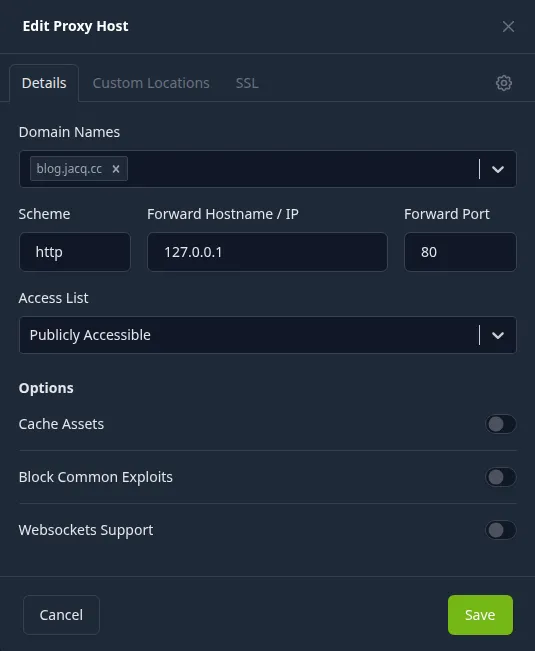
The blog’s host in NPM 2.16. The forward target is the placeholder; the three options are off.
The custom config does the real work:
# Relative redirects (Location: /foo/), so the scheme and host are never wrong behind a proxyabsolute_redirect off;
location / {    root /config/sites/blog;    try_files $uri $uri/ =404;    # Text files say they're UTF-8; nginx sends no charset by default    charset utf-8;    charset_types text/plain application/json application/xml text/xml application/rss+xml text/css application/javascript;}
# Each post as Markdown (/guides/<slug>.md). nginx's mime.types has no .md,# so without this it sends application/octet-stream and browsers download the file.location ~ \.md$ {    root /config/sites/blog;    try_files $uri =404;    types { }    default_type "text/markdown; charset=utf-8";}
# /api and /api/v1 answer straight away, without a redirect: agents probe bothlocation ~ ^/api/v1/?$ {    root /config/sites/blog;    try_files /api/v1/index.json =404;    charset utf-8;    charset_types application/json;}location = /api {    root /config/sites/blog;    try_files /api/index.html =404;    charset utf-8;}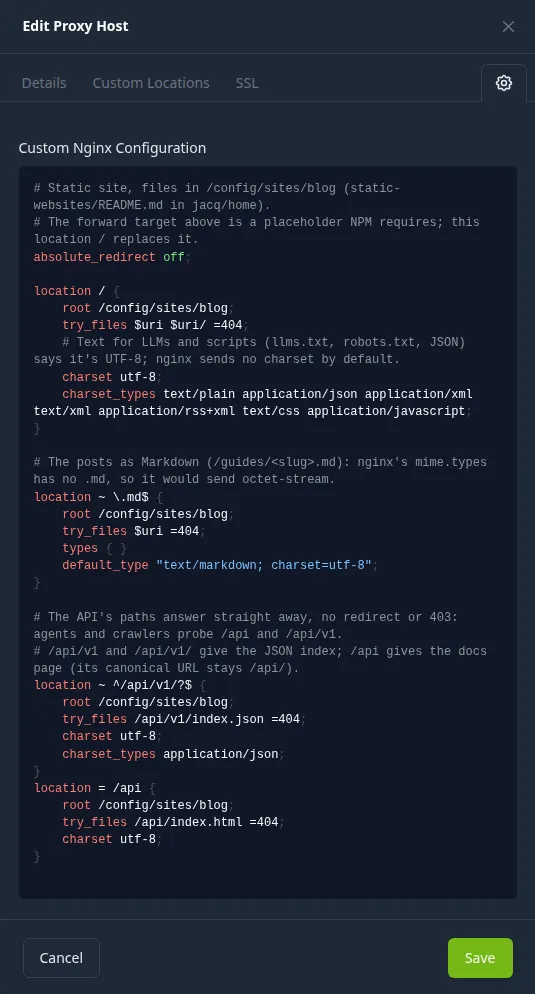
The same config where it goes, behind the gear icon.
I use root rather than alias, because alias together with try_files has known bugs. The rest of the host’s settings:
- SSL: Force SSL, HTTP/2 and HSTS on. HSTS subdomains stays off: on
jacq.ccit would force HTTPS on every name under it for two years. - Block Common Exploits off. It’s a list of URL patterns that protects nothing on a folder of static files, and it can block normal requests.
- Cache Assets off. Cloudflare does the caching (Step 6).
- Certificate: a Let’s Encrypt certificate just for
jacq.cc,www.jacq.ccandblog.jacq.cc, made by DNS challenge. I already had a wildcard certificate, but it also names my internal-only subdomain, and I didn’t want the public sites handing that to everyone who looks.
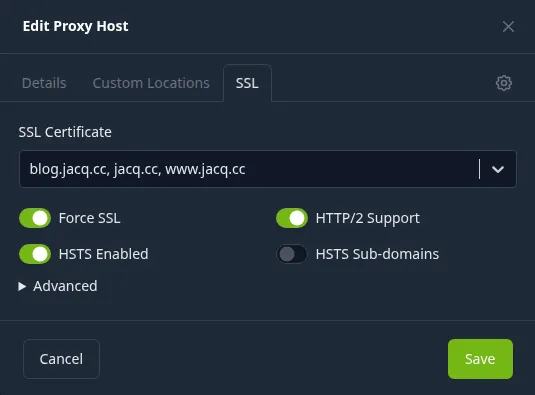
The SSL tab: a certificate of its own, HSTS on, sub-domains off.
www.jacq.cc is an NPM redirection host: a 301 to https://jacq.cc with the path kept. The home page at jacq.cc is a second proxy host like this one, with root /config/sites/root; a web app later gets its own location /foo/ block in that host, with root /config/sites/apps.
Step 4: Allow public domain names in from the internet
Section titled “Step 4: Allow public domain names in from the internet”My NPM has one global rule that gives every request from outside my networks no answer at all (nginx’s 444), whatever name it asks for. My private apps get through only with a client certificate; that rule and why it’s built that way are in the client certificate guide. For the public sites I added two lines that let them through without one:
# Key: outside (1 or 0) : the name asked for : the client certificate resultmap "$jacq_outside:$host:$ssl_client_verify" $jacq_block { default 0; # ...the private names, each with :SUCCESS... "~^1:jacq\.cc:" 0; "~^1:blog\.jacq\.cc:" 0; "~^1:" 1; # anything else from outside: no answer}www.jacq.cc needs no line: NPM’s redirection hosts don’t load the file that applies the rule.
In DNS, jacq.cc, www and blog are CNAMEs to my dynamic DNS name, which follows my home IP address. A CNAME on the bare domain isn’t allowed in plain DNS, but Cloudflare flattens it, and the mail records on jacq.cc (MX, SPF, DKIM, DMARC) didn’t change.
Step 5: One command publish (unattended)
Section titled “Step 5: One command publish (unattended)”./deploy.shdeploy.sh in the blog repo warns me if there are commits Gitea doesn’t have yet (Gitea is the backup), runs npm run build, then hands the dist/ folder to publish.sh, a script in my home lab repo that every site uses:
- Privacy check on exactly what’s about to go public. A 🔴 stops everything here. More on the check below.
- Copy and swap.
tarstreams the build over SSH. On the Pi it unpacks next to the live folder, gets ownerrootand read-only permissions, and twomvs swap it in. Files I deleted disappear with the old folder, and nobody ever gets a half-copied site. - Empty Cloudflare’s cache. If this fails, the script stops with a 🔴, because Cloudflare would otherwise keep the old pages for up to a year.
- Warm the cache: fetch every file of the site once through Cloudflare, 8 at a time, so the first visitor or impatient bot gets a cached copy. On 15 October that was 89 files in about 2 seconds.
- IndexNow: one request tells Bing and the other IndexNow search engines about every page.
The swap, as it runs on the Pi (pi is a host entry in my SSH config):
tar -C dist -cz . | ssh pi ' set -e d=/addon_configs/a0d7b954_nginxproxymanager/sites/blog sudo rm -rf "$d.new" "$d.old" sudo mkdir "$d.new" sudo tar -xz -C "$d.new" sudo chown -R root:root "$d.new" sudo chmod -R u=rwX,go=rX "$d.new" if [ -d "$d" ]; then sudo mv "$d" "$d.old"; fi sudo mv "$d.new" "$d" sudo rm -rf "$d.old"'And the warm-up. It turns each index.html into the URL a visitor would use (guides/x/, not guides/x/index.html, which Cloudflare caches as a different entry):
cd dist && find . -type f | sed 's|^\./||; s#\(^\|/\)index\.html$#\1#; s| |%20|g' | sed 's|^|https://blog.jacq.cc/|' | xargs -P 8 -I{} curl -sS -o /dev/null --compressed -m 30 \ -w '%{http_code} %header{cf-cache-status} %{url}\n' {}Privacy checks
Section titled “Privacy checks”Nothing on these sites may identify my family, the house or my home network: no names, no suburb, no IP or MAC addresses, no internal hostnames, device names, serial numbers or Home Assistant entity IDs, no home-folder paths, and no photo metadata. A Bash script checks for all of that, and it runs in three places, so a slip has to get past it three times:
| When | Run by | Checks |
|---|---|---|
| Every build | the prebuild script in package.json |
src/ and public/ |
| Every push | a git pre-push hook |
the same folders, in each commit being pushed |
| Every publish | publish.sh |
the finished dist/, which is what actually goes public |
The text part is one grep with a list of private words that’s never published (names, places, device and network names, serials), plus patterns for IPv4 and MAC addresses, email addresses, any name under my domain other than the public ones, home paths, entity IDs, and the file names Inkscape writes into SVGs. Each IPv4 part must be 0 to 255, so the numbers in an SVG path don’t trip it. A false positive goes into an allow list as the exact string. For images it runs ImageMagick’s identify -verbose and fails on any EXIF, XMP, IPTC, GPS, comment or PNG text chunk. Any other binary, like a PDF, fails until I’ve checked it by hand.
What it can’t do is look at a photo. So I still look at every new one myself before it goes in, for faces, the house or street, screens, and stickers with serial numbers or Wi-Fi passwords. Photos get shrunk and stripped first:
convert in.jpg -auto-orient -resize '1600x1600>' -strip -quality 78 out.jpgStep 6: Cache everything with Cloudflare
Section titled “Step 6: Cache everything with Cloudflare”The Pi could serve this blog to a lot of people. My upload can’t: it’s about 45 Mbps, and a page with photos is 0.5 to 1 MB, so 6 to 12 new visitors a second, a Hacker News front page, would fill it and slow down everything else at home. So these three names, and only these three, go through Cloudflare’s proxy (the orange cloud in its DNS page). Cloudflare keeps a copy of each file, and the Pi sends each one about once per publish.
| Setting | Value | Why |
|---|---|---|
| SSL/TLS mode | Full (strict) | Cloudflare checks the Pi’s real certificate. Flexible would talk to the Pi on port 80, which isn’t forwarded |
| Always Use HTTPS | on | Without it, Cloudflare fetches over HTTPS and hands the page to an http:// visitor unencrypted |
| Cache rule | cache everything on the three names, edge TTL 1 year, browser TTL from the origin | By default Cloudflare doesn’t cache HTML at all. My files only change when publish.sh runs, and that empties the cache |
| Tiered Cache, Smart topology | on (free on every plan) | A Cloudflare location without a copy asks an upper-tier location near the Pi, not the Pi. One warm-up from home fills it for everyone |
The cache rule, as cloudflare.sh setup sends it to PUT /zones/<zone id>/rulesets/phases/http_request_cache_settings/entrypoint (it keeps any other rules in that list):
{ "ref": "jacq_static_sites_cache", "description": "jacq.cc static sites: cache everything at the edge", "expression": "(http.host in {\"jacq.cc\" \"www.jacq.cc\" \"blog.jacq.cc\"})", "action": "set_cache_settings", "action_parameters": { "cache": true, "edge_ttl": { "mode": "override_origin", "default": 31536000 }, "browser_ttl": { "mode": "respect_origin" } }}The script uses an API token that can touch only this one zone: Zone Read, DNS Edit, Zone Settings Edit, Cache Rules Edit and Cache Purge. It has a read-only check mode, and a dns-only mode that turns the proxy off again. Here’s the blog’s home page on 26 October, a week after the last publish:
$ curl -sI https://blog.jacq.cc/HTTP/2 200content-type: text/html; charset=utf-8server: cloudflarelast-modified: Mon, 19 Oct 2026 12:08:35 GMTstrict-transport-security: max-age=63072000; preloadage: 555218cf-cache-status: HITage: 555218 is six and a half days: that copy hasn’t asked the Pi for anything since the warm-up.
Things to know:
- Never proxy a name that uses client certificates or WireGuard. The proxy ends TLS at Cloudflare, so a client certificate never reaches NPM, and it can’t carry WireGuard at all. My private names stay DNS-only.
- The home IP is only somewhat private. Looking up
jacq.ccorblog.jacq.ccgives Cloudflare’s addresses, not mine. But the CNAMEs point at my dynamic DNS name, which has to point at the house, so anyone who finds that name can still go to NPM directly. Something for later: let NPM answer these names from outside only to Cloudflare’s IP ranges. - Visitors show up as Cloudflare’s addresses in NPM’s logs. The real one is in the
CF-Connecting-IPheader, which I don’t log. - Right after switching the proxy on, test through Cloudflare on purpose. My laptop’s resolver kept the old answer for up to 5 minutes, so my first checks went straight to the Pi.
curl --resolve blog.jacq.cc:443:<a Cloudflare IP>takes the guessing out. - With my internet down, Cloudflare can keep serving cached pages for a while, then the sites are down. That’s fine for a blog.
Step 7: Search engines, feeds and AI agents
Section titled “Step 7: Search engines, feeds and AI agents”- Google reads the sitemap Starlight builds (
/sitemap-index.xml), which I submitted in Search Console. Right after submitting, both sitemaps said “Couldn’t fetch”, which is what Search Console shows while a new sitemap is still pending. Don’t panic and resubmit: URL Inspection’s live test said the page was available to Google. - IndexNow covers Bing (and DuckDuckGo through it), Yandex, Seznam and Naver.
publish.shwrites the key file into every build and then sends every page in one request toapi.indexnow.org. The key is public by design: search engines check it by fetching that file. - RSS at
/rss.xml, from@astrojs/rss. - LLMs and agents. All built from the posts’ Markdown, so nothing to do per post:
/llms.txtlists every post,/llms-full.txthas all of them in one file, each post is also at its URL with.mdon the end (this one: this page as Markdown), and there’s a small read-only JSON API at/api/described by/openapi.json. Every page carries schema.org data, androbots.txtallows every crawler, AI crawlers by name, with content signalssearch=yes, ai-input=yes, ai-train=yes. It’s the most fetched of these files (Step 8).
Step 8: Visitor stats without a tracking script
Section titled “Step 8: Visitor stats without a tracking script”I didn’t want a counter script on the pages or a stats app on the Pi. And NPM’s logs can’t count anything here: with a one-year cache, the Pi sees about one request per file per publish. But every request passes through Cloudflare’s proxy, so Cloudflare’s analytics see all of them, including the feed readers, crawlers and AI agents that never run JavaScript and wouldn’t show up in a script-based counter anyway.
The numbers come from Cloudflare’s GraphQL Analytics API, with a second API token that can only read, and only this zone. A Bash script, site-stats.sh, asks for the HTML pages answered with a 200, one UTC day at a time, and leaves out my own IP addresses (home, and wherever the laptop is right now). The addresses only go in the query as a filter: the script never prints or saves them.
query($z: string!, $a: Time!, $b: Time!, $ips: [string!]) { viewer { zones(filter: {zoneTag: $z}) { httpRequestsAdaptiveGroups(limit: 10000, filter: { datetime_geq: $a, datetime_lt: $b, requestSource: "eyeball", clientIP_notin: $ips, edgeResponseContentTypeName: "html", edgeResponseStatus: 200}) { count sum { visits } dimensions { date clientRequestHTTPHost userAgent verifiedBotCategory } } } }}What the free plan gives you to query:
| Dataset | History | Split by |
|---|---|---|
httpRequestsAdaptiveGroups |
31 days | host, path, status, content type, country, browser, user agent, Cloudflare’s verified-bot category (AI Crawler, Search Engine Crawler, Feed Fetcher…), cache status, time to the minute |
httpRequests1dGroups |
1 year | day only, all names in the zone together |
httpRequests1hGroups |
3 days | hour, all names together |
There’s no referrer on the free plan, so it can’t tell me how many readers came from Hacker News; HN’s own page shows points and comments.
Ask for one day at a time. One query over 30 days came back sampled at 1 in 10: counts in tens, and the 30-day count for llms.txt (110) was lower than the 14-day one (171). So the script asks for each UTC day on its own and adds them up. The counts are exact, and a day shows the same numbers however many days I ask for.
Who counts as a reader. Cloudflare’s verified-bot category wins when it has one. Otherwise the user agent decides: feed readers (FreshRSS, Miniflux), other bots and link previews (Mastodon, Lemmy, chat apps), scripts (curl, Python, headless Chrome), and readers: Chrome, Edge, Firefox or Safari no more than about six months old. The script works out the newest version from the date, because Chrome and Firefox ship a major version every four weeks:
# Chrome 131 came out on 2024-11-12; one major version every 4 weeks sinceecho $(( 131 + ($(date -u +%s) - $(date -u -d 2024-11-12 +%s)) / (28 * 86400) ))Anything older counts as “old or fake”. Scrapers love an old or made-up browser version. A real reader on a browser that hasn’t updated in months gets counted wrong, and that’s the trade-off.
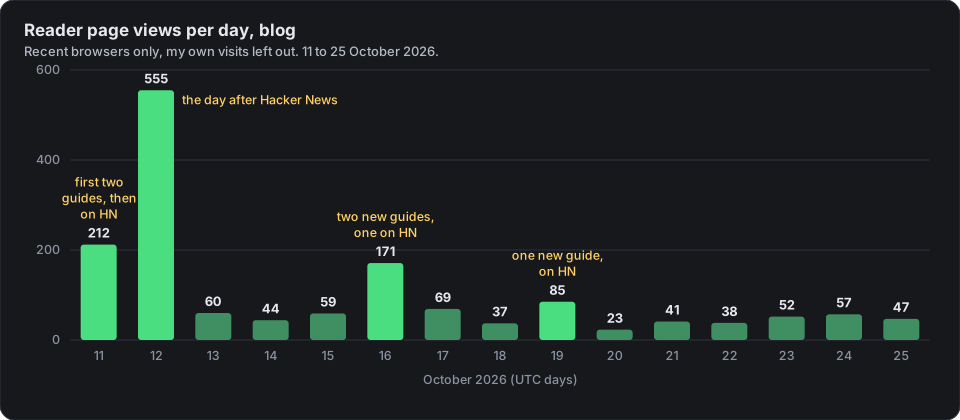
Readers per day, from site-stats.sh report 30.
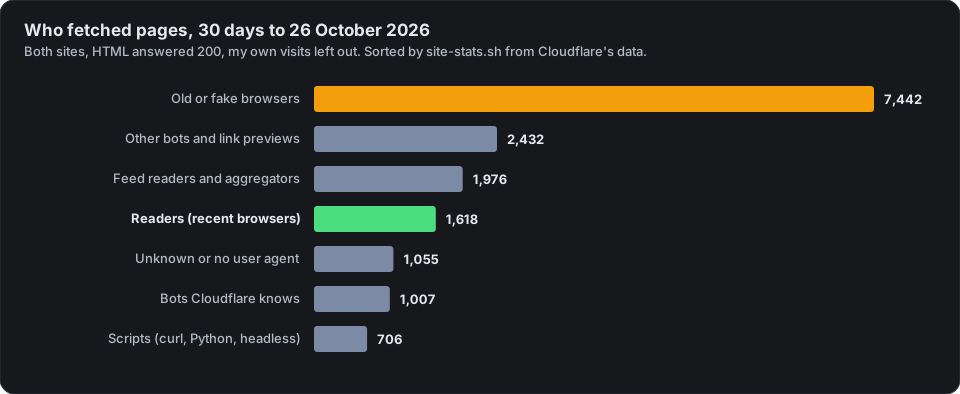
Who fetched pages in the same 30 days. Readers are about a tenth of it.
Browsers with old or made-up versions fetched almost five times as many pages as readers did, and Mastodon’s link previews alone fetched 777. In those 15 days, 800 of the blog’s 1,550 reader page views were the GameSir T1d guide.
Files for search engines, feed readers and agents, in the same 30 days:
| File | Fetches | Who asked most (Cloudflare’s bot category, or the user agent) |
|---|---|---|
robots.txt |
975 | Search Engine Crawler 167, AI Crawler 111, Search Engine Optimization 109 |
rss.xml |
683 | Chrome 172, GuzzleHttp 164, Firefox 53 |
Markdown pages (.md) |
498 | Chrome 136, curl 135, Search Engine Crawler 52 |
| API, OpenAPI, ai-plugin | 375 | curl 139, Chrome 111, Search Engine Optimization 27 |
| Sitemap | 213 | AI Crawler 72, curl 50, Chrome 24 |
llms.txt, llms-full.txt |
171 | Chrome 53, curl 53, AI Crawler 13 |
The most fetched file is robots.txt, for the user-agent / bot category. Despite reports of it being ignored, it’s quite the opposite. Fetching it doesn’t mean they obey it, though. Mine allows everyone, so I can’t tell.
How it turned out
Section titled “How it turned out”It’s going quite well. It’s very quick, and it doesn’t have downtime because it’s served from Cloudflare. Every time there’s a small spike from Hacker News, it serves it fine.
On a positive note, this site is open to user agents, AIs and LLM training. I figured that while I’m creating these articles and blog posts, most people these days will get their information through AI. Google usually gives you the result in its AI response, or people might use Claude chat, and people seldom find websites they don’t already know through search engines. So the only way I can share my learnings and these projects is by opening the site up to LLMs and user agents, so that hopefully other people looking for things I’ve done here can get that information and short-circuit some of the bits I had to figure out myself. That’s the least I can do. I guess it’s the lesser of two evils: unfortunately AI doesn’t really reference where it got its information from. I think Gemini’s responses on Google’s search pages do link to sources, and I’ve noticed that when I get Claude to help me with these posts, it adds sources, which is good. It’s always good to point back to where you actually got help and information from.
What next
Section titled “What next”A Home Assistant dashboard for the static websites. The stats script will update it every hour and keep each finished day on the Pi, so the history outlives Cloudflare’s 31 days.
Sources
Section titled “Sources”- Astro, Starlight and Pagefind
- nginx core module:
location,root,try_files,absolute_redirect,types,default_type - Nginx Proxy Manager:
internal/nginx.js(advancedConfigHasDefaultLocation) - Cloudflare: Cache Rules, Tiered Cache, Full (strict), purge everything, CNAME flattening, HTTP headers (
CF-Connecting-IP), GraphQL Analytics API, IP ranges - IndexNow documentation, llms.txt, content signals
Questions or comments? Discuss on Hacker News.
Change history
- : First published.
This guide as plain Markdown, for LLMs and scripts: static-blog-raspberry-pi-nginx-proxy-manager-cloudflare.md. All posts: API and Markdown.
Text, photos and drawings: CC BY 4.0. Code: MIT. Share and adapt them, crediting HomeLab Guides (blog.jacq.cc). Licence and privacy