Guide
Run Jellyfin on Home Assistant OS for old TVs and Fire TV sticks
Published · Updated
I wanted our films and shows on the TVs. The Raspberry Pi 5 that runs Home Assistant OS is on all day anyway, so Jellyfin went on it as an app. The Fire TV stick gets the Jellyfin app. The Samsung TVs use DLNA, the old UPnP media-server standard that nearly every smart TV still speaks. The 2016 one is too old for the Jellyfin app, which Samsung only offers on 2021 and newer models.

Three things took the time, and I couldn’t find them written down together:
- The DLNA plugin announced the server on 127.0.0.1 only, so no TV could see it.
- The Samsungs hid one of my libraries.
- The Pi 5 has no hardware video encoder, so video conversion has to stay off.
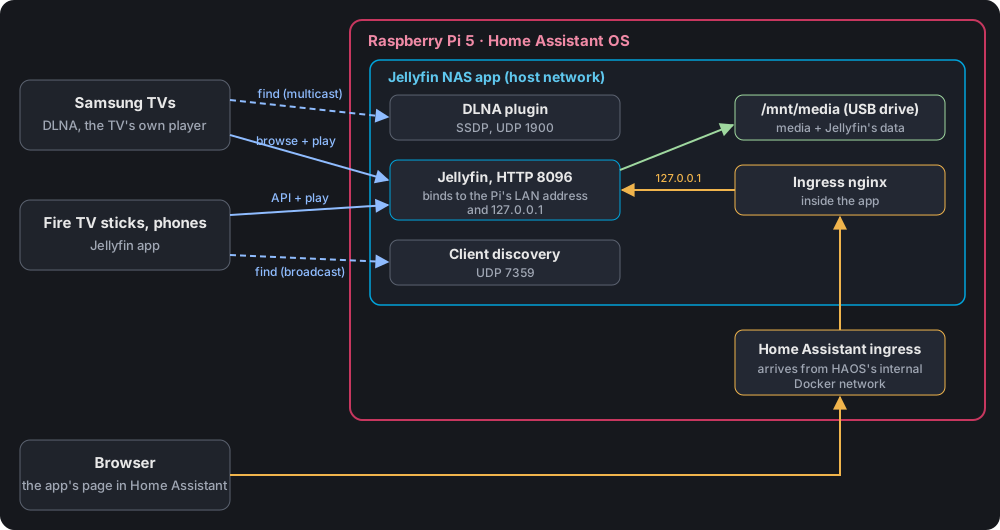
Who talks to whom. Dashed lines find the server, solid lines browse and stream.
What you need
Section titled “What you need”- A Raspberry Pi 5 with Home Assistant OS (HAOS). Jellyfin idles at about 300 MB of RAM.
- A USB drive for the media, formatted ext4 with a label. Below, the label is
media. - TVs on the same network and subnet as the Pi. DLNA discovery is multicast, and it doesn’t cross subnets or VLANs.
- A fixed address for the Pi (a DHCP reservation is fine).
About an hour, plus copying the films.
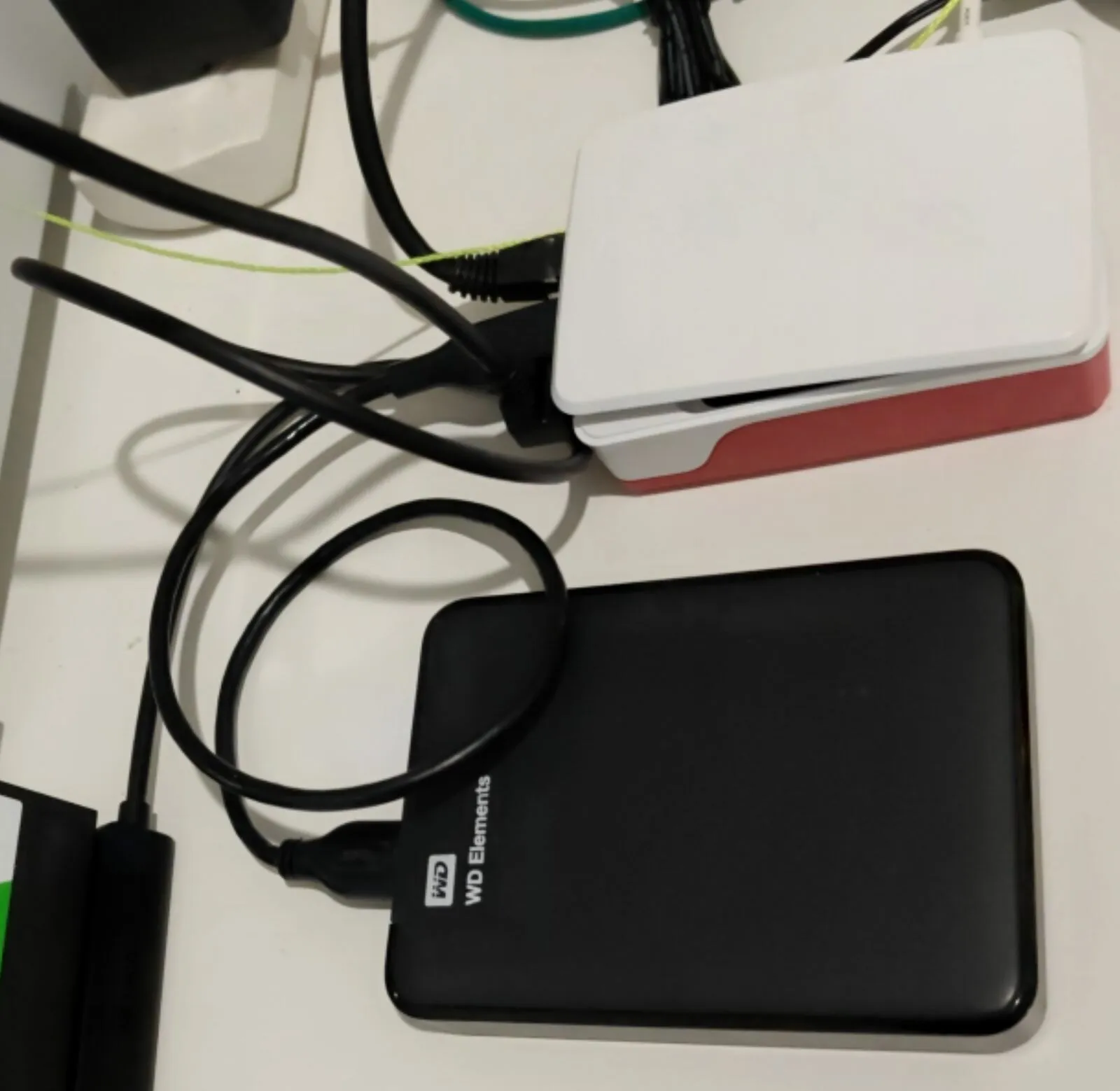
My Pi 5 and the 2 TB WD Elements disk that holds the media.
Step 1: Install the Jellyfin NAS app
Section titled “Step 1: Install the Jellyfin NAS app”In Home Assistant’s app store, open the ⋮ menu → Repositories and add alexbelgium’s repository:
https://github.com/alexbelgium/hassio-addonsThen install Jellyfin NAS. Pick this one because it runs on the host network. DLNA discovery is multicast on UDP 1900, and from the Docker bridge network the Community Apps Jellyfin uses, that multicast doesn’t reach the TVs.
On the Configuration tab, point it at the drive:
localdisks: mediadata_location: /mnt/media/jellyfinlocaldisks takes the drive’s label, and the app mounts it at /mnt/<label>. data_location moves Jellyfin’s database and posters off the SD card. Neither is in Home Assistant’s backups.
Step 2: Libraries
Section titled “Step 2: Libraries”Add the libraries in Dashboard → Libraries (mine: movies/, tv/ with one folder per show, and downloads/). In each one, turn real time monitoring on, and trickplay and chapter image extraction off. Both decode every video to make preview pictures, which is CPU the Pi doesn’t need.
Then put an empty hidden folder, .keep, in each library folder. Jellyfin skips an empty library folder when it scans (on purpose: an unplugged drive shouldn’t wipe the library). It then doesn’t watch the folder either, so new files only appear at the next scheduled scan. The hidden folder counts as content, and Jellyfin doesn’t list it. I ran into this on day two.
Step 3: A Family user, and no video conversion
Section titled “Step 3: A Family user, and no video conversion”- Admin: strong password, Hide this user from login screens on.
- Family: no password, not an administrator, no media deletion. Every shared screen signs in as Family, so nobody on the sofa can delete a film.
- Both: Allow video playback that requires transcoding off.
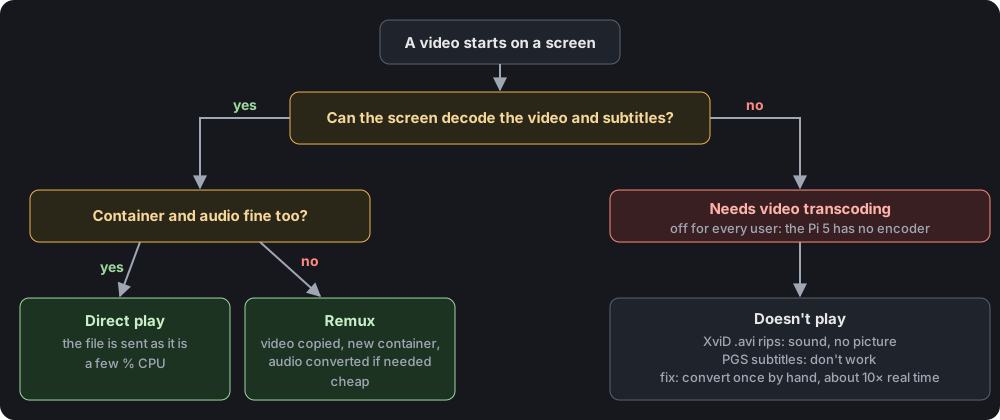
With video transcoding off, a file plays as it is, gets repackaged cheaply, or doesn’t play at all.
With no hardware encoder, converting video would mean software encoding on all four cores, next to Home Assistant. With it off, a file plays as it is or gets repackaged without re-encoding, which is cheap. Two side effects: picture-based subtitles (PGS, from Blu-ray rips) don’t work, and old XviD .avi rips play sound with no picture. They’re rare, so I convert each one once, by hand, to H.264:
ffmpeg -i 'Film.avi' -c:v libx264 -preset veryfast -crf 20 -c:a aac -b:a 160k -movflags +faststart 'Film (Year).mp4'Step 4: DLNA, bound to the Pi’s address
Section titled “Step 4: DLNA, bound to the Pi’s address”Since Jellyfin 10.9, DLNA is a plugin: Dashboard → Plugins → Catalogue → DLNA, install, restart. Set its Default user to Family, because DLNA has no login.
Then the step that made the TVs see the server. In Dashboard → Networking:
| Setting | Value |
|---|---|
| Bind to local network address | The Pi’s LAN address, and 127.0.0.1 |
| Enable IPv6 | Off |
| LAN networks | Your LAN (e.g. 192.168.x.0/24) and 172.30.32.0/23 |
| Allow remote connections to this server | Off |
- The LAN address is the fix (why, below).
127.0.0.1stays for the app’s page inside Home Assistant: its nginx talks to Jellyfin there.172.30.32.0/23is HAOS’s internal Docker network, where Home Assistant’s requests come from. With remote connections off, Jellyfin blocks every address that isn’t a LAN network.
Restart Jellyfin, then look for this line in Dashboard → Logs:
Registering publisher for "urn:schemas-upnp-org:device:MediaServer:1" on "127.0.0.1"If it says 127.0.0.1, the TVs can’t see the server. Fixed, it names the Pi’s LAN address.
Step 5: Watch
Section titled “Step 5: Watch”| Screen | How |
|---|---|
| Samsung TV | Source → your server name |
| Fire TV stick | Install Jellyfin from the Amazon Appstore. It finds the server by itself. Tap Family |
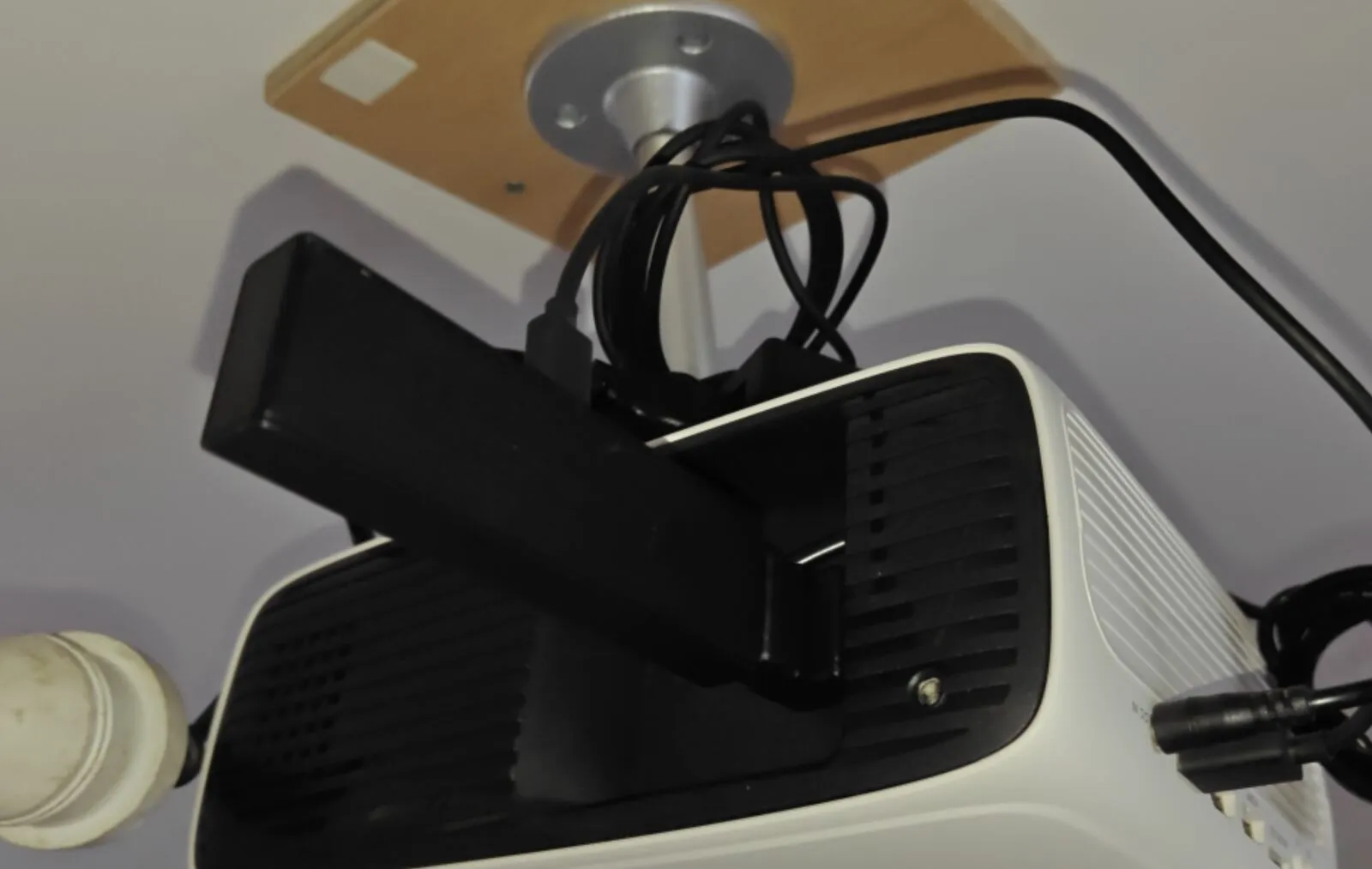
My older Fire TV Stick, plugged straight into a ceiling-mounted projector. It runs the Jellyfin app.
Why DLNA was stuck on loopback
Section titled “Why DLNA was stuck on loopback”The DLNA plugin picks the addresses to announce in DlnaHost.cs. It takes Jellyfin’s bind addresses and keeps only IPv4, multicast-capable, non-loopback ones. If none are left, it falls back to 127.0.0.1. With the default “every address” bind, none were left, so it announced on 127.0.0.1 and answered no one.
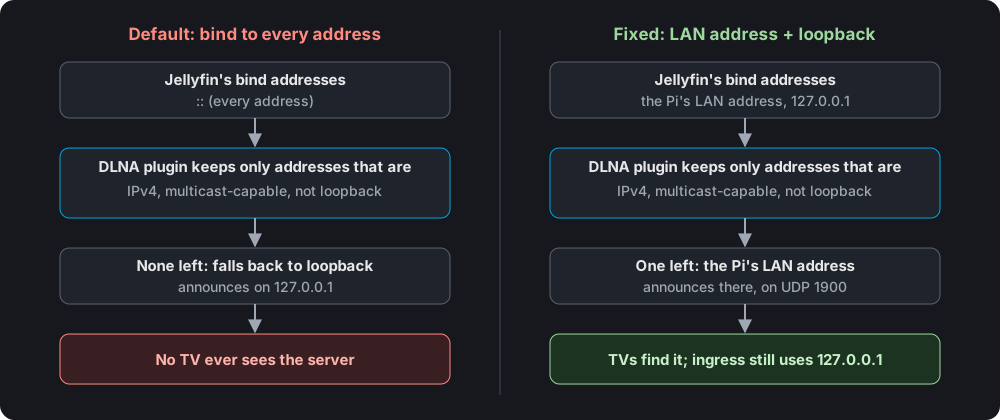
The same filter, two bind lists. Only the one with a real LAN address gives the TVs something to find.
The forum threads with that log line end unanswered. They’re on Docker or Windows, so I’d expect the same fix there, but I’ve only tested it on HAOS.
The Samsungs hid a library
Section titled “The Samsungs hid a library”My third library started as Downloads, type Home Videos and Photos. Both Samsungs showed Movies and Shows, but not Downloads. The plugin reported it as a folder with no children, though it held videos, and Samsung’s DLNA browser hides empty folders. Movies and Shows libraries always show, because the plugin gives them fixed sub-folders (Latest, Genres and so on).
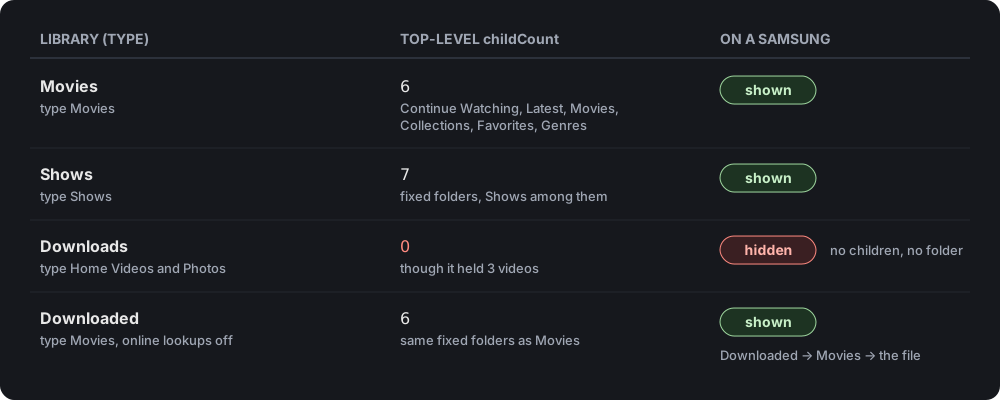
What the DLNA plugin reported at the top level, and what the Samsungs made of it.
The fix: a new library, Downloaded, type Movies, with every metadata downloader off, so files are listed by name and nothing goes online. On a Samsung it’s then Downloaded → Movies → the file.
The catch: you can’t change a library’s type by removing it and adding it again under the same name. Jellyfin keeps the old entry, old type included. Give it a new name.
Sources
Section titled “Sources”- alexbelgium/hassio-addons, Jellyfin NAS
- jellyfin-plugin-dlna,
DlnaHost.cs: which addresses DLNA announces on - jellyfin,
Folder.cs: the empty-library-folder skip - Jellyfin networking docs
- SamMobile, February 2026: the Samsung app needs a 2021 or newer TV
Change history
- : First published.
This guide as plain Markdown, for LLMs and scripts: jellyfin-home-assistant-os-old-tvs.md. All posts: API and Markdown.
Text, photos and drawings: CC BY 4.0. Code: MIT. Share and adapt them, crediting HomeLab Guides (blog.jacq.cc). Licence and privacy