Guide
M5Stack Atom Echo on your own ESPHome build: push to talk, a doorbell, no internet
Published · Updated
I thought the M5Stack Atom Echo would be a great addition, especially as a doorbell: I could plug it into the USB socket in one of the kitchen power points. It’s a 24 mm cube with a microphone, a small speaker, an RGB light and one button, and Home Assistant can use it as a voice satellite. Voice commands were a bonus, so I planned a couple of basic ones.
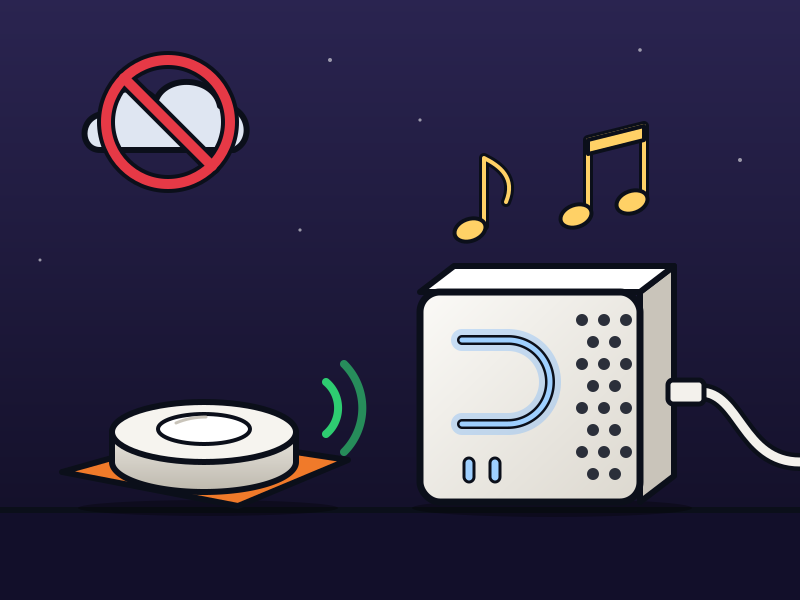
When I first plugged it in, I found out it already had firmware on it, and that got me a bit worried. I don’t trust firmware I haven’t seen built, and this device was only ever going to talk to my own network. So before it did anything useful, I isolated it, erased the whole chip over USB and flashed an ESPHome config I wrote myself. That config does only what I need: press the button and talk to Home Assistant, ring when someone presses the doorbell, and say when the front gate opens. No wake words, Bluetooth, setup hotspot or updates from the internet, and the router drops anything it tries to send outside the house.
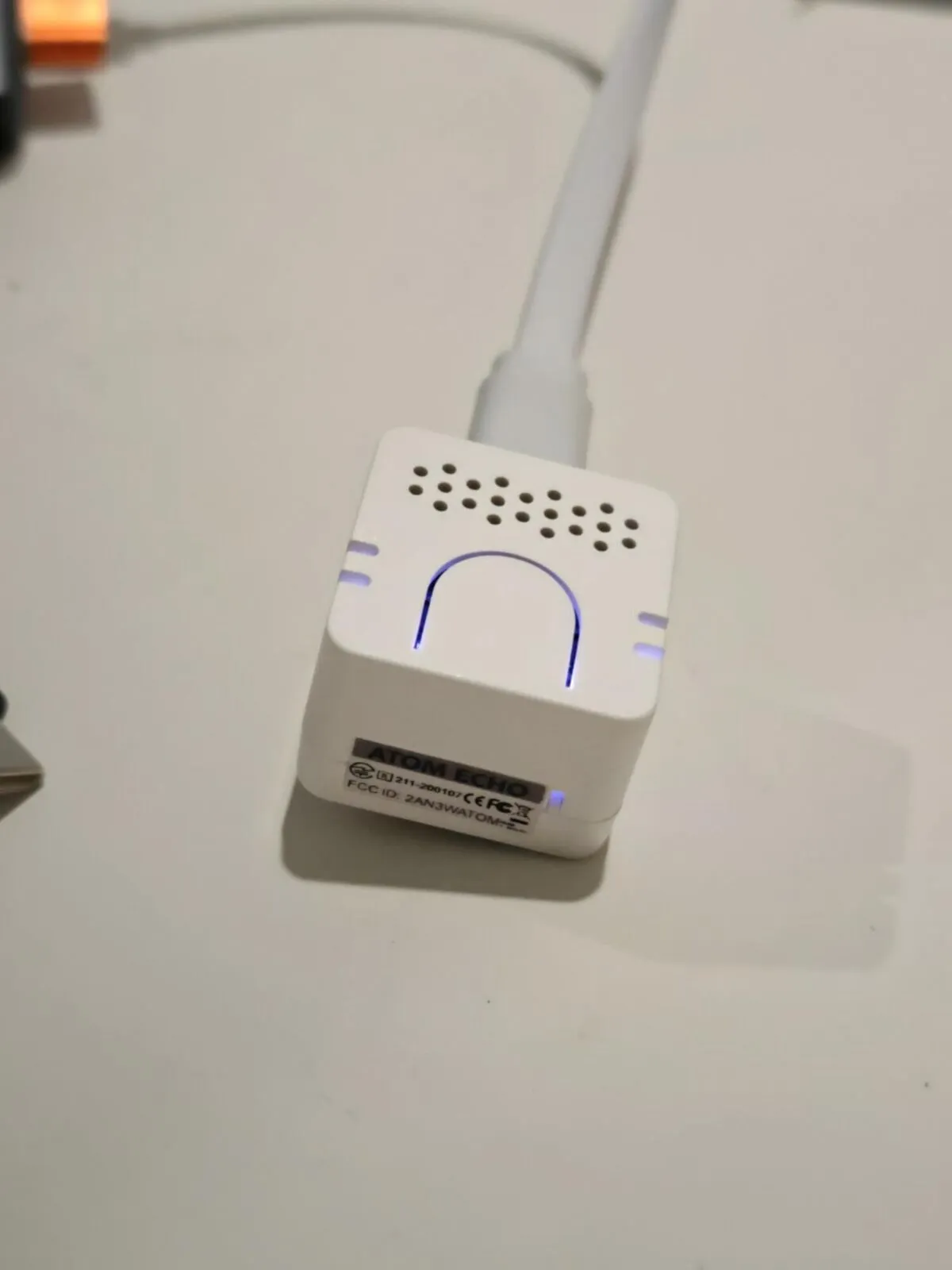
My Atom Echo, photographed before I erased it. The whole top is the button.
What you need
Section titled “What you need”| Part | Mine |
|---|---|
| M5Stack Atom Echo | SKU C008-C: ESP32-PICO-D4, 4 MB flash, Wi-Fi and Bluetooth (no Zigbee), SPM1423 microphone, NS4168 amplifier |
| A USB-C data cable, plugged straight into a computer | Through my USB hub it only got power, and the laptop didn’t see it at all |
| ESPHome on that computer | ESPHome 2026.9.1 from pipx, on Linux |
| Home Assistant with the ESPHome integration | 2026.10.2 on a Raspberry Pi 5 |
| The Speech-to-Phrase and Piper apps | For a voice pipeline that runs on the Pi |
| A router that can drop traffic per device | An EdgeRouter; the Echo is on my IoT Wi-Fi, a separate subnet |
| A Zigbee button, for the doorbell (optional) | Sonoff SNZB-01P, paired in ZHA |
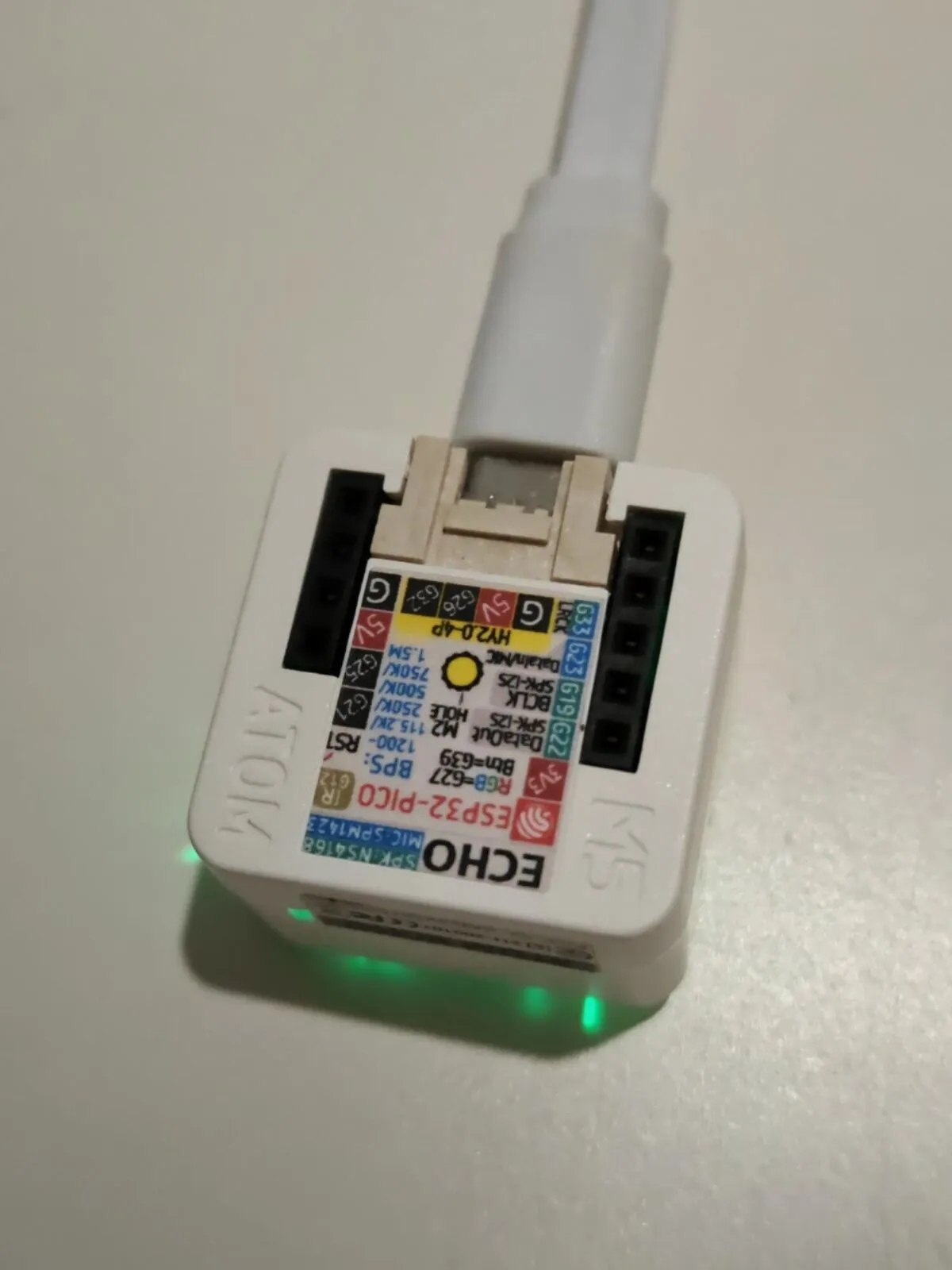
The label on the bottom lists the pins the ESPHome config needs: button on G39, RGB light on G27, and the I2S lines for the microphone and speaker.
Step 1: Isolate it first
Section titled “Step 1: Isolate it first”Until you’ve replaced it, the factory firmware is code you can’t check, with your Wi-Fi password in it. Mine had already joined my IoT Wi-Fi, so I hurried: I gave it a fixed address in the router’s DHCP and added a temporary rule that dropped everything it sent. Home Assistant had found it as well, so I disabled that entry until the new firmware was on.
If it was going to do anything, it probably would have done it pretty quickly. Or it could have been a sleeper, who knows. The main thing is that it was blocked, and then I could flash it.
The rule is the same as the permanent one in step 4, without the line that lets it reach Home Assistant.
Step 2: Write your own ESPHome config
Section titled “Step 2: Write your own ESPHome config”Mine is atom-echo.yaml (MIT licensed). The pins and audio settings come from ESPHome’s official config for the Echo; the rest is mine. What it leaves out matters as much as what’s in it:
| Factory firmware | Mine |
|---|---|
| A “minimal” ESPHome build meant to update itself to the full one, which listens for wake words on the device | Push to talk only, with no wake word code at all |
| Bluetooth on, for setup | No Bluetooth |
| Opens a hotspot if Wi-Fi fails | No hotspot: it keeps retrying |
Updates itself from firmware.esphome.io |
No updates from the internet |
| API unencrypted, updates over Wi-Fi with no password | API and updates over Wi-Fi encrypted with one key |
| No doorbell | A Doorbell chime button, with the chime stored in the firmware |
The parts that do the locking down are short:
api:  encryption:    key: !secret api_key
ota:  # Updates over Wi-Fi are encrypted with the API key; nothing else can upload firmware  - platform: esphome    encryption:
# No `ap:` or `captive_portal:`: if Wi-Fi fails it keeps retrying instead of opening a hotspot.wifi:  ssid: !secret wifi_ssid  password: !secret wifi_password
No esp32_ble, esp32_improv, update: or http_request: blocks means no Bluetooth, no setup over Bluetooth and no way to fetch firmware from anywhere. Download secrets.yaml.example next to the config as secrets.yaml, put your Wi-Fi name in it, and make the key:
openssl rand -base64 32Home Assistant asks for the same key when you add the device, so keep it somewhere safe. Keep secrets.yaml out of git.
The config also needs the chime file next to it. make-doorbell.py builds a two-note “ding-dong” from sine waves, so there’s no sound licence to worry about, and sox turns it into the 16 kHz the speaker runs at:
python3 make-doorbell.py doorbell.wavsox doorbell.wav -r 16000 doorbell-16k.wavStep 3: Erase and flash it over USB
Section titled “Step 3: Erase and flash it over USB”You could flash it over Wi-Fi, but the firmware that’s already running is the one that receives an update over Wi-Fi, so that’s only as trustworthy as the firmware you want gone. Over USB, esptool talks to the ESP32’s boot ROM. That code is part of the chip and no firmware can change it, so when it erases the flash, the flash really is erased.
What the old firmware could have done is burn eFuses: turn on flash encryption or secure boot, which would stop a plain image from booting. Checking those is part of the job. flash.sh does all of it in order:
- Finds the USB serial port and gives your user access to it once with
sudo setfacl, so you don’t need thedialoutgroup. - Reads the chip’s MAC and asks you to confirm it’s the right device, or checks it against the MAC you pass:
bash flash.sh aa:bb:cc:dd:ee:ff. - Runs
espefuse summaryand stops if flash encryption or secure boot is on. - Copies the whole 4 MB flash to
~/backups/atom-echo/(mode 600: it holds your Wi-Fi password), asks for the Wi-Fi password, and builds the firmware. - Erases the whole chip, writes the build and has the boot ROM verify it.
pipx install esphomepipx runpip esphome install 'bitstring>=4.2,<5'bash flash.shThe second line is for a breakage I hit: ESPHome 2026.9.1 pulled in bitstring 5, and espefuse stopped working with it. Redo it after every ESPHome upgrade until that’s fixed.
If you’d rather type it yourself, these are the commands underneath (the port may differ):
PORT=/dev/ttyUSB0esptool --port $PORT --baud 115200 read-macespefuse --port $PORT summary | grep -E '^(FLASH_CRYPT_CNT|ABS_DONE_0|ABS_DONE_1)'esptool --port $PORT --baud 115200 read-flash 0 ALL factory-flash.binesphome compile atom-echo.yamlIMG=.esphome/build/m5stack-atom-echo/build/firmware.factory.binesptool --port $PORT --baud 115200 erase-flashesptool --port $PORT --baud 115200 write-flash 0x0 $IMGesptool --port $PORT --baud 115200 verify-flash 0x0 $IMGFLASH_CRYPT_CNT should be 0 and both ABS_DONE values False. Mine were, and nothing was write-protected.
The Echo’s USB serial chip couldn’t keep up at 460800 baud, so the script drops to 115200 when the faster speed fails. At that speed, copying the old flash took about 7 minutes and writing the new firmware about 70 seconds.
The factory firmware turned out to be ESPHome’s own “minimal” build for the Echo (ESPHome 2025.6.1), going by what it reported about itself. I still had no way to check that it was built from that source, which is the whole reason for the erase.
Later updates go over Wi-Fi, encrypted with the API key, so the USB cable is only needed once:
esphome run atom-echo.yaml --device <echo-ip>Step 4: Block the internet at the router
Section titled “Step 4: Block the internet at the router”My firmware never needs the internet: no updates, no time servers, no cloud. It does need one thing on the LAN. When Home Assistant answers, it doesn’t stream the reply to the Echo: it gives the Echo a URL for the audio, on Home Assistant’s internal URL, and the Echo downloads it. Mine is HTTPS through a reverse proxy on port 443; on a plain install it’s port 8123 on Home Assistant’s own address.
On an EdgeRouter, the IoT subnet’s inbound rule set gets two rules: one that lets the Echo reach Home Assistant on that port, and one after it that drops everything else the Echo starts. Put them before any rule that allows IoT traffic out.
configureset firewall name IOT_IN rule 15 action acceptset firewall name IOT_IN rule 15 description 'Atom Echo to Home Assistant (voice replies)'set firewall name IOT_IN rule 15 protocol tcpset firewall name IOT_IN rule 15 source address <echo-ip>set firewall name IOT_IN rule 15 destination address <home-assistant-ip>set firewall name IOT_IN rule 15 destination port 443set firewall name IOT_IN rule 16 action dropset firewall name IOT_IN rule 16 description 'Atom Echo: nothing else, no internet'set firewall name IOT_IN rule 16 protocol allset firewall name IOT_IN rule 16 source address <echo-ip>commit ; saveexit- Home Assistant still reaches the Echo on its API port, 6053, because that connection starts from the LAN, and the Echo’s replies pass as established traffic.
- DNS still works: the Echo asks the router itself, and a router’s own services sit under its local rules, not the inbound ones.
- The Echo needs a fixed address for this, so give it a DHCP reservation.
Step 5: Add it to Home Assistant with a local voice pipeline
Section titled “Step 5: Add it to Home Assistant with a local voice pipeline”mDNS doesn’t cross from my IoT subnet to the LAN, so Home Assistant didn’t discover the new firmware. Add it by hand: Settings → Devices & services → Add integration → ESPHome, the Echo’s IP address, then the API key from secrets.yaml.
For the voice side, I wanted nothing leaving the house either:
| Part | What I use |
|---|---|
| Speech to text | Speech-to-Phrase: fast on a Pi, but it only understands Home Assistant commands and the sentences you give it, not free speech |
| Text to speech | Piper, voice en_GB-cori-medium (there’s no Australian voice). About 0.3 seconds per reply once loaded; the first reply after a restart takes about 10 seconds |
| Conversation | Home Assistant’s built-in agent |
Install both apps, let the Wyoming integration pick them up, then make an assistant under Settings → Voice assistants with those three and pick it in the Echo’s Assistant setting. For free speech, Whisper can replace Speech-to-Phrase, at the cost of speed on a Pi; I haven’t tried it.
The device page also showed a card offering to stream music to the Echo (“Set up your ESPHome proxy”). On a speaker this small I pressed Later.
Push to talk, not hold to talk
Section titled “Push to talk, not hold to talk”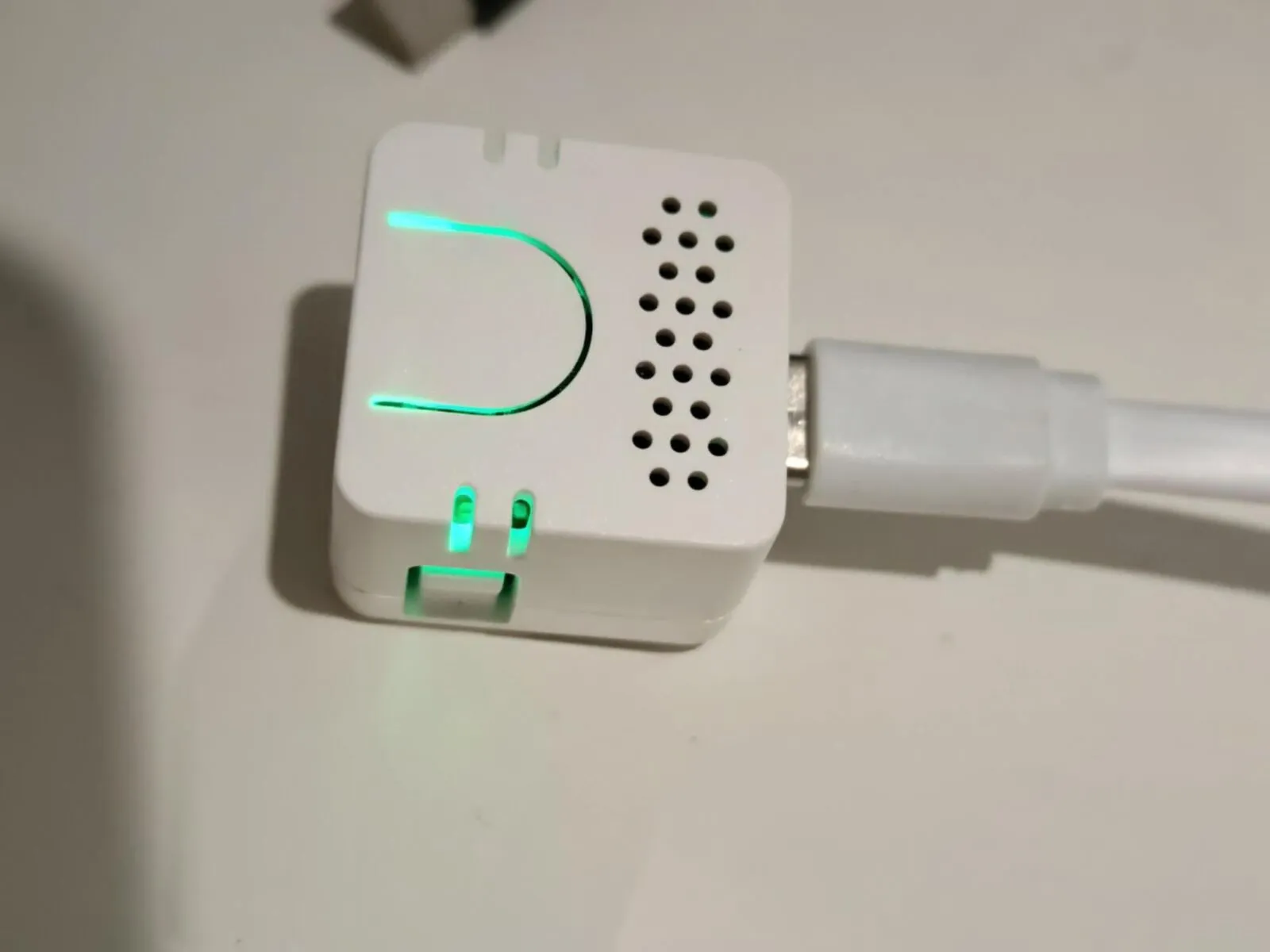
Still on the factory firmware here, glowing green. With mine the light is off until you press the button, pulses blue while it listens and turns red on an error.
My first build listened while the button was held and stopped when it was released. It never answered. ESPHome’s voice_assistant.stop tells Home Assistant to abort the run, so the recording was thrown away before Speech-to-Phrase replied, and ESPHome 2026.9 has no action for “the audio is finished, now answer”. So one press starts listening, Home Assistant ends it when you stop talking, and a second press while it’s listening cancels:
binary_sensor: - platform: gpio pin: number: GPIO39 inverted: true name: Button on_press: - if: condition: voice_assistant.is_running: then: - voice_assistant.stop: else: - media_player.stop: announcement: true - voice_assistant.start:With no wake word, the microphone only listens after a press.
Your own questions
Section titled “Your own questions”Built-in commands work (“turn on the kitchen light”, “what time is it”). For anything else, a sentence trigger in an automation gives Home Assistant the words, and Speech-to-Phrase trains itself on them. [word] is optional and (a|b) means either:
automation: - alias: "Voice: temperature outside" mode: parallel triggers: - trigger: conversation command: - "[what's] [the] temperature outside" - "how (hot|cold|warm) is it outside" actions: - set_conversation_response: >- It's {{ states('sensor.outdoor_temperature') | float | round(1) }} degrees outside.If a new sentence isn’t recognised, restart the Speech-to-Phrase app: it retrains in about 5 seconds.
Step 6: A doorbell chime stored in the firmware
Section titled “Step 6: A doorbell chime stored in the firmware”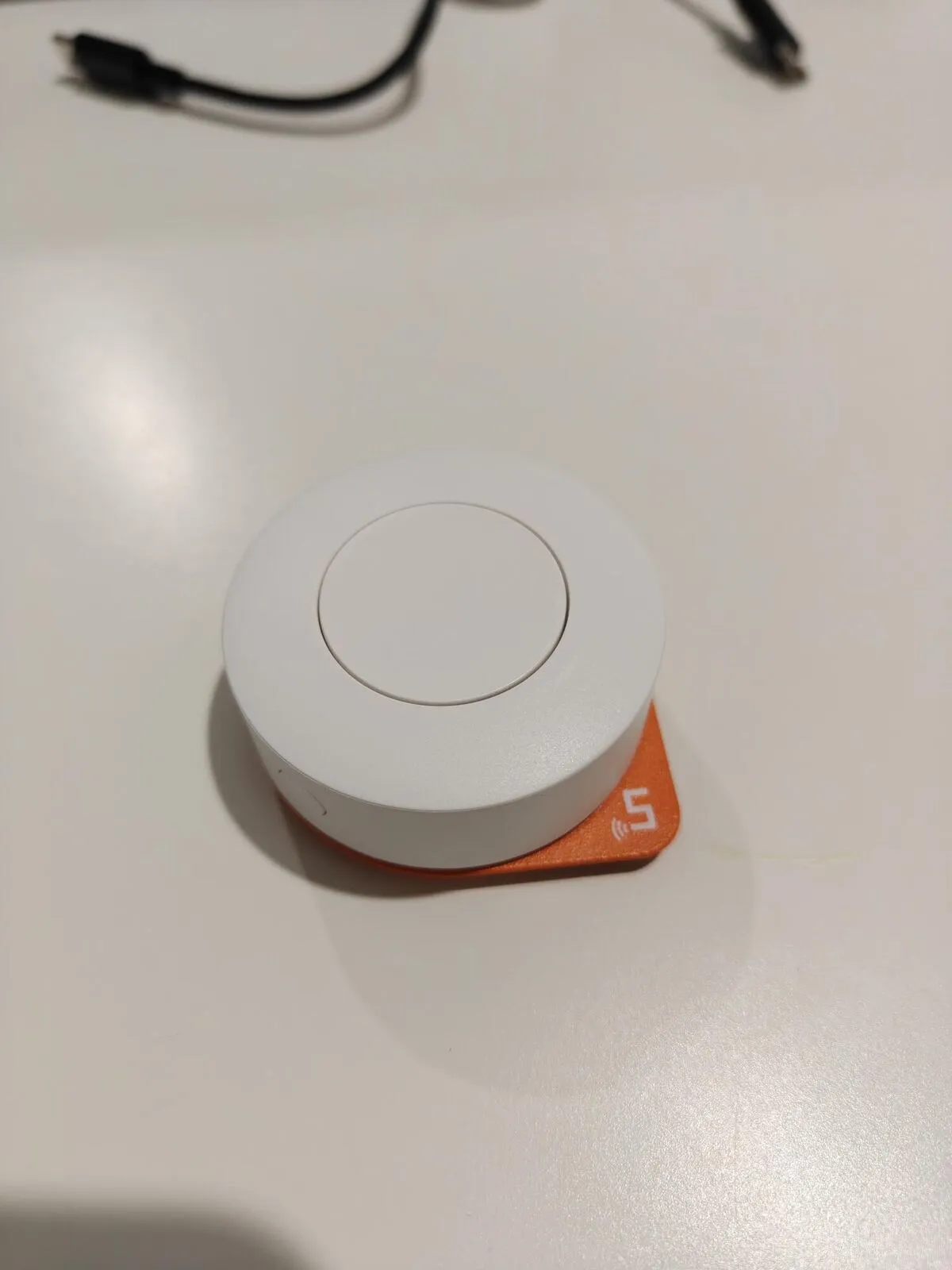
The doorbell: a Sonoff SNZB-01P Zigbee button on its stick-on base.
The chime from step 2 is built into the firmware. ESPHome’s speaker media player can play a file from flash, and a template button exposes that to Home Assistant:
media_player:  - platform: speaker    # ...    files:      - id: doorbell_chime        file: doorbell-16k.wav
button:  - platform: template    name: Doorbell chime    on_press:      - media_player.speaker.play_on_device_media_file:          media_file: doorbell_chime          announcement: true
Nothing has to be downloaded when someone rings: Home Assistant only presses the button. In Home Assistant, an automation presses that button on the Zigbee button’s short press. Build the trigger in the UI (Device, your button, “short press”) so it fills in the device ID:
automation: - alias: Doorbell mode: single max_exceeded: silent triggers: - trigger: device domain: zha device_id: <your button's device id> type: remote_button_short_press subtype: button actions: - action: button.press target: entity_id: button.atom_echo_doorbell_chime # Ignore extra presses while it's still ringing - delay: 3Mine also sends a notification to a wall tablet in the same automation. I tested it with the real button: the chime and the notification both ran without errors.
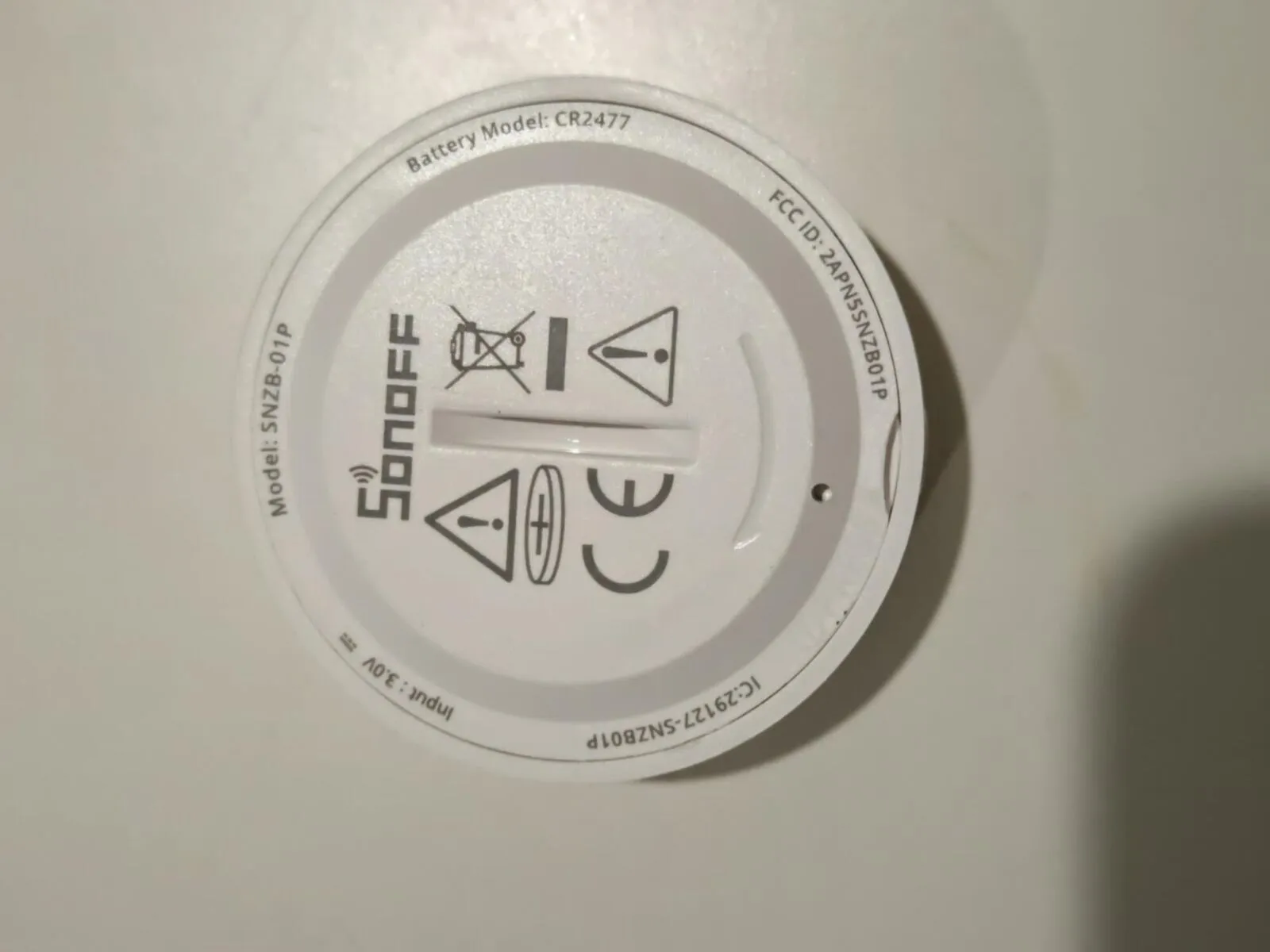
The back: a CR2477 coin cell.
Step 7: Have it announce things
Section titled “Step 7: Have it announce things”Home Assistant can make any voice satellite say something with assist_satellite.announce: a short ding, then Piper reads the message (cached after the first time, so it starts quickly). Mine says “Front gate open” when the gate’s contact sensor opens:
actions: - action: assist_satellite.announce target: entity_id: assist_satellite.atom_echo data: message: Front gate open # Don't repeat if the gate bounces open and shut - delay: 10When I tested it, it spoke within a second of the gate opening, and ignored two more openings in the next 13 seconds.
How it turned out
Section titled “How it turned out”I’m happy with the result: it turned out quite well. The speaker isn’t that loud, but it’s loud enough to recognise the gate or the front door chiming.
Sources
Section titled “Sources”- M5Stack: Atom Echo (pinout, chips)
- ESPHome: the official Atom Echo config, Voice Assistant, Speaker media player (
files,play_on_device_media_file), Native API and OTA encryption - Espressif: esptool and espefuse
- Home Assistant: ESPHome integration, Assist satellite (
announce), sentence triggers, Speech-to-Phrase, Piper
Change history
- : First published.
This guide as plain Markdown, for LLMs and scripts: atom-echo-own-firmware.md. All posts: API and Markdown.
Text, photos and drawings: CC BY 4.0. Code: MIT. Share and adapt them, crediting HomeLab Guides (blog.jacq.cc). Licence and privacy