
Guide
Dvorak with QWERTY's brackets on KDE Plasma (Wayland)
Published · Updated
I wanted Dvorak’s letters with [ ] { } \ | - _ = + still on their QWERTY keys, as a second layout next to my usual au (the same keys as US). Copy and paste should stay easy too: on plain Dvorak, Ctrl+C and Ctrl+V move to the QWERTY I and . keys.
![A drawing: a keyboard with Dvorak letters where the - = [ ] \ keys glow green because they stay on their QWERTY keys, and a pill in the corner switches between au and dvq](/_astro/cover.JBspcquK_Z15X8TA.svg)
No stock layout does this. The closest is gb(dvorakukp), “English (UK, Dvorak, with UK punctuation)”. It keeps - = [ ] on their QWERTY keys, but it’s built on UK Dvorak: Shift+2 gives ", Shift+3 gives £, the \ key gives # ~, and \ | moves to the extra key next to left Shift, which US and Australian keyboards don’t have. So I wrote my own: US Dvorak, five keys moved back, and QWERTY letters while Ctrl or Meta is held.
The layout
Section titled “The layout”![The dvq layout on a US keyboard: Dvorak letters, with - = [ ] and \ green because they stay on their QWERTY keys, and / ? pink because it moved to the QWERTY ’ key](/_astro/layout.Bb4yXe1P_Z2cPK1A.svg)
dvq. Green keys are where QWERTY has them. The pink one moved.
| QWERTY key | US / au |
dvq |
Dvorak |
|---|---|---|---|
- |
- _ |
- _ |
[ { |
= |
= + |
= + |
] } |
[ |
[ { |
[ { |
/ ? |
] |
] } |
] } |
= + |
' |
' " |
/ ? |
- _ |
\ | is on the same key in all three. Dvorak’s / ? had to go somewhere, and the ' key was the one left free: Dvorak has - _ there, and those are back on their own key now. ' " stays where Dvorak puts it, on the QWERTY q key.
With Ctrl or Meta held, every key gives its QWERTY symbol instead (Step 3).
What you need
Section titled “What you need”| Part | Notes |
|---|---|
| KDE Plasma 6 on Wayland | Mine: Plasma 6.6 on Kubuntu 26.04 |
xkbcomp |
Only for the script’s compile check. In apt as x11-xkb-utils |
| sudo | The files go in /etc/xkb |
Step 1: Download the files
Section titled “Step 1: Download the files”mkdir dvq && cd dvqfor f in install.sh dvorak-qwerty custom-types evdev.xml; do curl -fsSO https://blog.jacq.cc/keyboard-layout/$fdoneFour files: install.sh, the layout dvorak-qwerty, its key types custom-types and evdev.xml. MIT licence (LICENSE).
Step 2: The layout file
Section titled “Step 2: The layout file”default partial alphanumeric_keysxkb_symbols "basic" { include "us(dvorak)" name[Group1] = "English (Dvorak, QWERTY brackets and -=)";
replace key <AE11> {[ minus, underscore ]}; replace key <AE12> {[ equal, plus ]}; replace key <AD11> {[ bracketleft, braceleft ]}; replace key <AD12> {[ bracketright, braceright ]};
// ... 29 keys with QWERTY levels for Ctrl and Meta (Step 3)};include "us(dvorak)" pulls in all of US Dvorak, and each replace key line changes one key, here the four that go back to QWERTY. Key names are positions, not letters. AE is the number row, AD the top letter row and AC the home row. <AE11> is the key right of 0, <AD11> and <AD12> are the two right of QWERTY’s P, and <AC11> is the one right of ;.
To move other keys, add more lines. us(dvorak) in xkeyboard-config’s symbols/us shows what’s on each key.
Step 3: Ctrl and Meta on QWERTY keys
Section titled “Step 3: Ctrl and Meta on QWERTY keys”An XKB key can have more levels than plain and Shift, and its key type decides which modifiers pick which level. So each of the 29 keys that differ from QWERTY gets four levels: Dvorak, Dvorak with Shift, then QWERTY and QWERTY with Shift. Three of them:
replace key <AB03> { type[Group1] = "DVQ_ALPHA", [ j, J, c, C ] };replace key <AB04> { type[Group1] = "DVQ_ALPHA", [ k, K, v, V ] };replace key <AC11> { type[Group1] = "DVQ_PUNCT", [ slash, question, apostrophe, quotedbl ] };No stock key type does this, so custom-types defines two. The lines that matter, from DVQ_ALPHA:
modifiers = Shift + Lock + Control + Mod4;map[Shift] = Level2;map[Lock] = Level2;map[Control] = Level3; preserve[Control] = Control;map[Control+Shift] = Level4; preserve[Control+Shift] = Control;map[Mod4] = Level3; preserve[Mod4] = Mod4;preserve is the important part. Without it, XKB counts Ctrl as used up by the key, and apps get a plain c instead of Ctrl+C. Mod4 is Meta, so KDE’s own shortcuts stay on their QWERTY keys too: Meta+Alt+K for the next layout, Meta+L to lock the screen. Alt on its own stays Dvorak, because menus underline the letter you type. DVQ_PUNCT is the same without Caps Lock, for keys whose Dvorak symbol isn’t a letter. It’s the idea behind macOS’s “Dvorak - QWERTY ⌘” layout.
Two catches:
type[Group1], nottype. My first try hadtype = "DVQ_ALPHA", andau, the first layout, lost every Ctrl shortcut:Ctrl+Cgave no symbol at all. A type without a group applies to every layout on that key.Group1is the layout’s own group, and the:2that the second layout gets moves it to the right place.- The stock XKB option
custom:typesloads the types. It readstypes/custom, which libxkbcommon finds in/etc/xkbbefore the system folder. Without the option the types are unknown, every key falls back to one level, and Shift stops giving capitals. The script turns it on. It’s also in System Settings > Keyboard > Key Bindings, under Miscellaneous options: “Use user-defined custom XKB types”.
I tested the keymap in libxkbcommon itself, from Python: Ctrl+C, V, X and Z, Ctrl+Shift+C, Ctrl+Alt+K and Meta+Alt+K give the QWERTY letter with the modifiers still set, on dvq and on au. VS Code may still use the Dvorak positions, because it matches shortcuts by physical key and the layout’s plain symbols. If it does, set "keyboard.dispatch": "keyCode" in its settings. I haven’t tried that yet.
Step 4: evdev.xml
Section titled “Step 4: evdev.xml”KWin finds the layout without it. System Settings only lists layouts from evdev.xml files, though, and libxkbregistry merges this small one with the system list. The layout then shows up in System Settings > Keyboard > Layouts as “English (Dvorak, QWERTY brackets and -=)”, with the short label dvq.
Step 5: Install
Section titled “Step 5: Install”bash install.shRun it as yourself, not with sudo: it asks for the password once, for the copy. It’s safe to run again. What it does:
- Compiles the layout with
xkbcompfrom a temporary folder, so a typo stops it before anything is installed. - Copies the three files to
/etc/xkb/symbols/dvorak-qwerty,/etc/xkb/types/customand/etc/xkb/rules/evdev.xml. It stops if someone else’stypes/customis already there. - Turns on
custom:typesin~/.config/kxkbrc, after your other options. - Adds
dvorak-qwertyafter your current layouts in~/.config/kxkbrc, labelleddvq. With no layouts set yet, it starts from the system’s (localectl). - Sets
Meta+Alt+K(Switch to Next Keyboard Layout) if it’s empty. Mine was.
KWin 6.6 ignores the old reloadConfig DBus signal on /Layouts. It reloads its layouts when kxkbrc changes through kwriteconfig6 --notify, and only when a value actually changes, so the script writes each key that way.
Step 6: Log out and back in, the first time
Section titled “Step 6: Log out and back in, the first time”On the first install, the script ends with:
🟠 KWin hasn't loaded it yet: it only searches /etc/xkb if that existed when KWin started. Log out and back inlibxkbcommon looks for layouts in ~/.config/xkb, ~/.xkb, /etc/xkb, then /usr/share/X11/xkb. KWin builds that list once, when it starts, and leaves out folders that don’t exist yet. On my laptop none of the first three existed, so KWin only searched /usr/share/X11/xkb. KWin logs to the system journal, not your user journal:
journalctl -b _COMM=kwin_wayland | grep -i xkbkwin_xkbcommon: XKB: [XKB-338] Couldn't find file "symbols/dvorak-qwerty" in include pathskwin_xkbcommon: XKB: [XKB-338] 1 include paths searched:kwin_xkbcommon: XKB: [XKB-338] /usr/share/X11/xkbkwin_xkbcommon: XKB: [XKB-338] 3 include paths could not be added:kwin_xkbcommon: XKB: [XKB-338] ~/.config/xkbkwin_xkbcommon: XKB: [XKB-338] ~/.xkbkwin_xkbcommon: XKB: [XKB-338] /etc/xkbkwin_xkbcommon: XKB: [XKB-661] Couldn't process include statement for 'dvorak-qwerty'KWin then keeps the layouts it had, so nothing changes on screen.
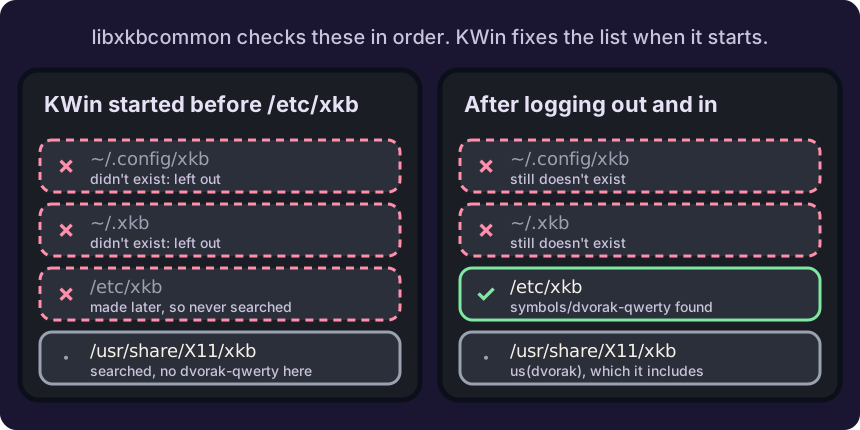
The same four folders before and after a log-out.
Log out and back in, and KWin starts with /etc/xkb in its list. After an edit to the layout, run the script again and log out once more.
The first install put the files in ~/.config/xkb. When KWin didn’t load them, the first guess was its cap_sys_nice capability: libxkbcommon ignores home-folder paths in programs that run with extra privileges. That’s why the files moved to /etc/xkb, which didn’t help either. The log above shows the guess was wrong: ~/.config/xkb is in KWin’s list, it just didn’t exist yet. It should work after a log-out too, but I haven’t tried it.
Step 7: Switch layouts
Section titled “Step 7: Switch layouts”Meta+Alt+K goes to the next layout, and the tray icon shows au or dvq. If the script found that shortcut already set, it left it: look in System Settings > Shortcuts > Keyboard Layout Switcher.
The lock screen uses whichever layout is active. If your password fails there, check the layout first.
Remove it
Section titled “Remove it”In System Settings > Keyboard, remove dvq under Layouts and untick “Use user-defined custom XKB types” under Key Bindings. Then delete the files:
sudo rm /etc/xkb/symbols/dvorak-qwerty /etc/xkb/types/custom /etc/xkb/rules/evdev.xmlKeep that order: with the option still on and types/custom gone, no keymap compiles, not even au.
Sources
Section titled “Sources”- libxkbcommon: user configuration: the search folders and the
evdev.xmlformat - libxkbcommon: the XKB keymap text format: key types, levels and
preserve - xkeyboard-config: symbols/us:
us(dvorak) - xkeyboard-config: symbols/gb:
gb(dvorak)andgb(dvorakukp)
Change history
- : First published.
This guide as plain Markdown, for LLMs and scripts: dvorak-qwerty-brackets-kde-wayland.md. All posts: API and Markdown.
Text, photos and drawings: CC BY 4.0. Code: MIT. Share and adapt them, crediting HomeLab Guides (blog.jacq.cc). Licence and privacy