Guide
WHDZ05 Wi-Fi smart plug: ESPHome over serial
Published · Updated
My second WHDZ05 plug turned out to be Wi-Fi, not Zigbee (how I found out). I don’t want it talking to Tuya’s cloud, so it gets ESPHome: Home Assistant talks to it directly, on my own network.
No way around the wires
Section titled “No way around the wires”tuya-cloudcutter can flash some Tuya devices over Wi-Fi, without opening them. It only works on Beken BK72xx chips. This plug has a Lightning Semi LN882H, so it’s flashed over its serial port.
The good news: the LN882H’s boot loader is in ROM. A failed flash can’t brick it. You flash again.
What you need
Section titled “What you need”- A USB-serial adapter with 3.3 V logic: CP2102, CH340 or FTDI. If it has a 3.3 V / 5 V jumper, set it to 3.3 V. 5 V on the data pins can kill the chip.
- Thin wire (30 AWG wire-wrap wire is ideal), a soldering iron with a fine tip, flux, and Kapton or masking tape.
- A breadboard and a few jumper wires.
- A multimeter with a continuity beep.
- Maybe a separate 3.3 V supply. A USB-serial adapter’s own 3.3 V pin is often too weak (the LibreTiny docs say most flashing problems are voltage drops or loose wires). A spare ESP32 or ESP8266 dev board’s 3V3 pin works.
- On the laptop: ltchiptool and ESPHome, both installed with pipx.
Step 1: Open the plug
Section titled “Step 1: Open the plug”Open the case. Keep the plug unplugged the whole time.
Step 2: Find the five points
Section titled “Step 2: Find the five points”The radio sits on a small blue module, soldered upright into the main board. Its pins are labelled on the back.
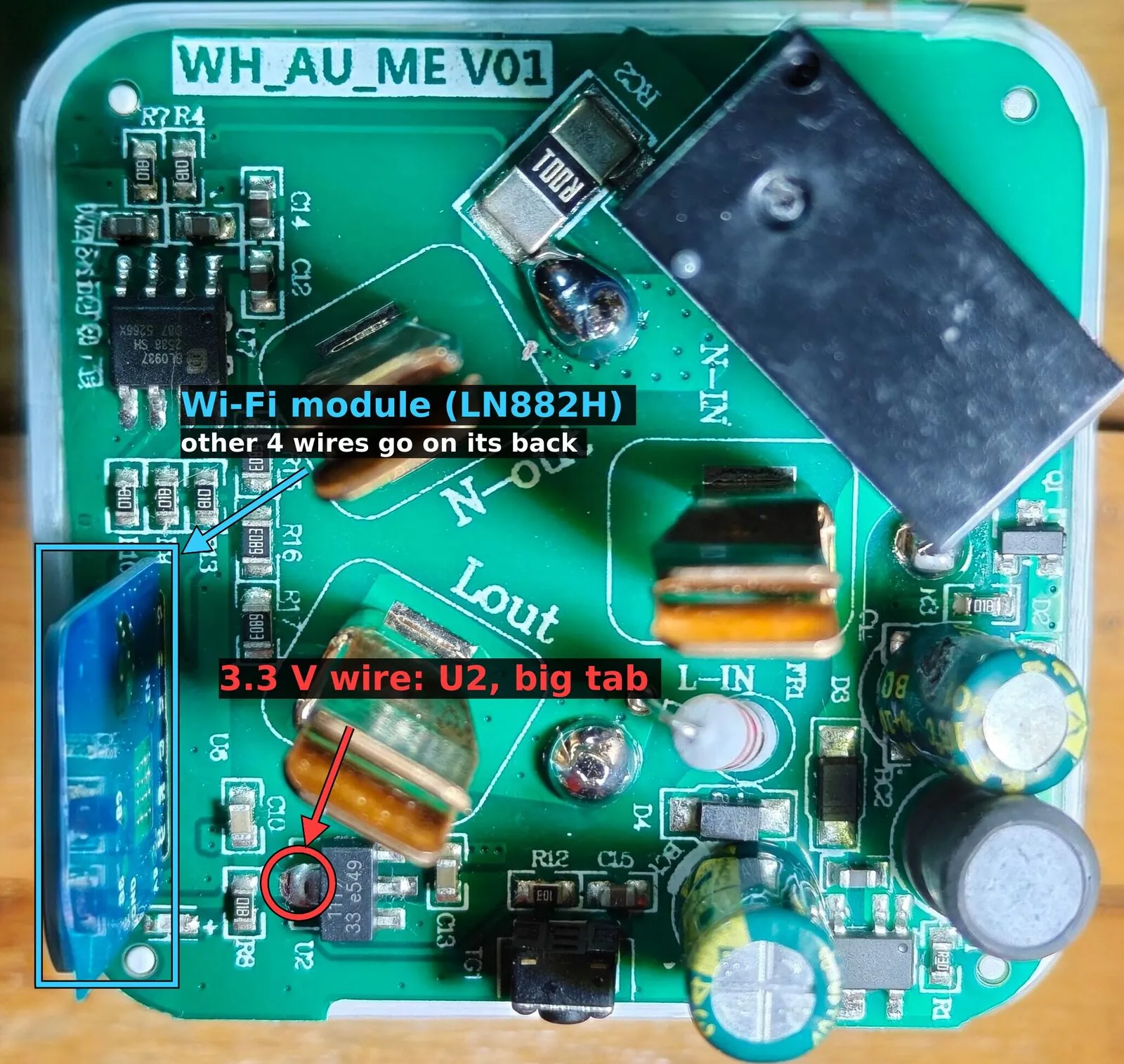
The 3.3 V wire goes on U2’s big tab. The other four go on the Wi-Fi module’s back.
| Wire | Adapter pin | Where on the plug |
|---|---|---|
| 3.3 V | 3V3 | The big tab of U2, the 1117 33 regulator on the main board: that’s its 3.3 V output, and it’s the same as the module’s VCC |
| Ground | GND | The round GND pad on the module’s back |
| Plug’s RX | TX | The module’s A3 pin (RX0) |
| Plug’s TX | RX | The module’s A2 pin (TX0) |
| Boot | GND on the breadboard | The round A9 pad on the module’s back |
A9 decides how the chip starts. Tied to ground at power-up, the chip waits for a flasher instead of running its firmware. It has to stay grounded the whole time you read or write the flash.
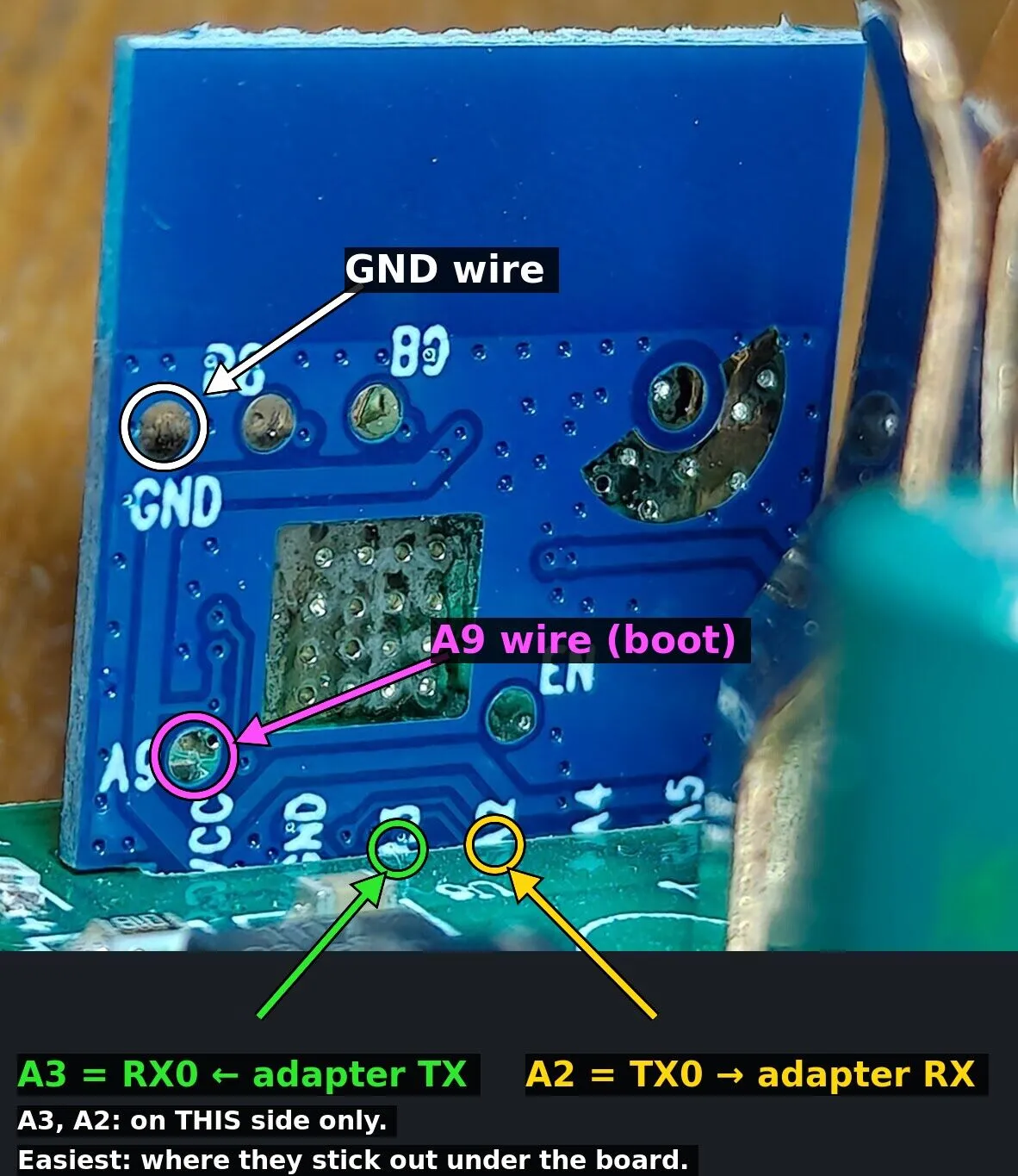
The module’s back. GND and A9 are big round pads. A3 and A2 are two of the pins along the bottom edge. They go through the main board and stick out underneath: that’s the easiest place to solder them.
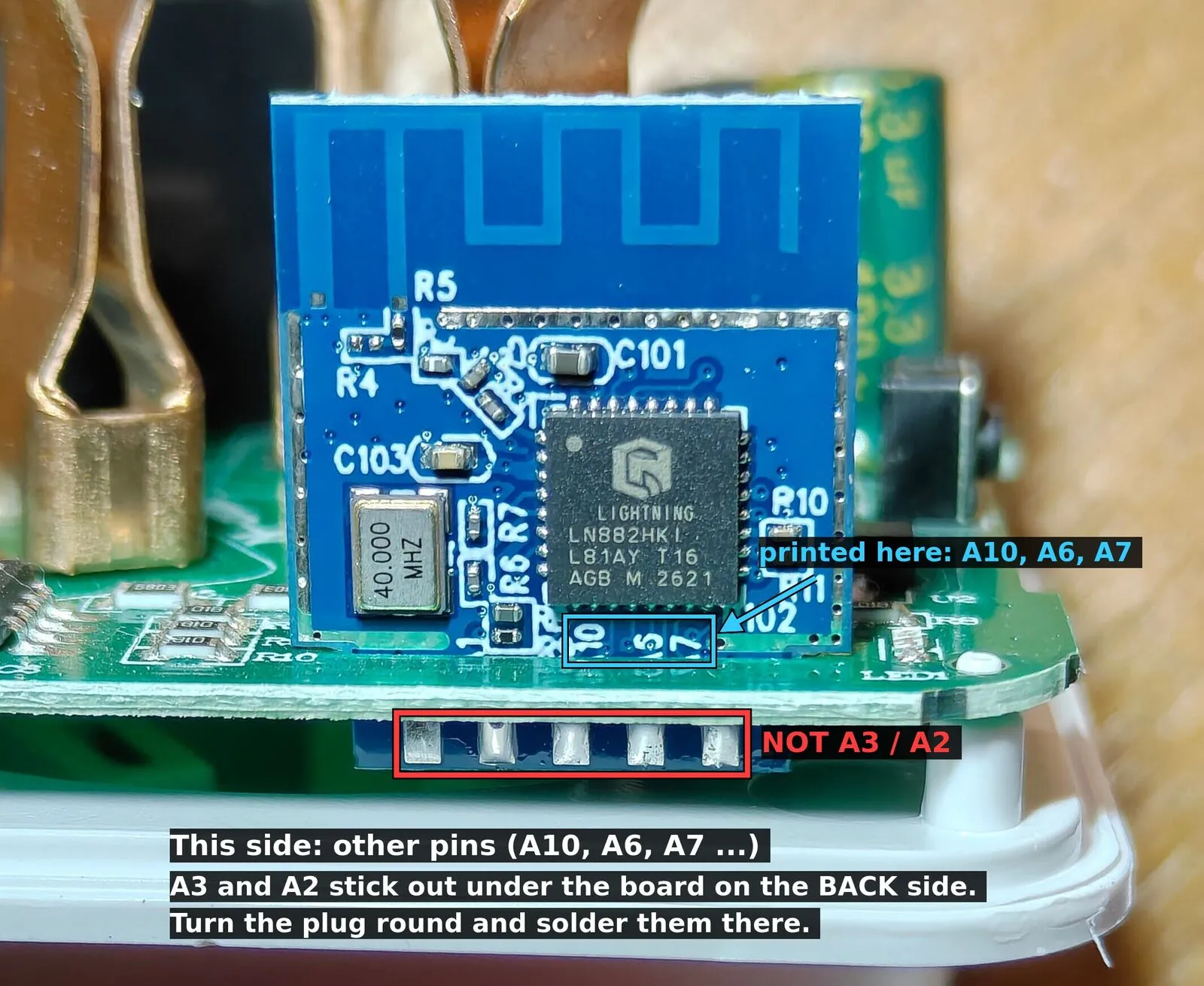
The module’s front, from the other side of the plug. The pins under the board are easy to reach, but on this face they’re other signals: the labels read A10, A6 and A7. The back face has its own row of pins, A3 and A2 among them, sticking out the same way.
Check both power points with the multimeter’s beep before soldering: the U2 tab against the module’s VCC pin, and the GND pad against the module’s GND pin. Both pins are on the bottom edge of the module’s back, labelled.
Step 3: Solder the wires
Section titled “Step 3: Solder the wires”The trick is never to hold the wire while soldering, so a steady hand isn’t needed.
- Put flux on the pad and melt a small blob of solder onto it.
- Strip and tin the end of the wire, then cut the bare end to 1–2 mm.
- Tape the wire down so its end lies on the pad by itself.
- Touch the iron to it for a second. The blob melts around the wire.
- Pull the wire gently. If it holds, tape it to the case so a tug can’t rip the pad off.
Solder paste works too: a dab on the pad, the wire on top, taped, then the iron. Not hot air: it would loosen the module’s own parts.
Step 4: Connect the adapter
Section titled “Step 4: Connect the adapter”Through the breadboard, so nothing needs holding:
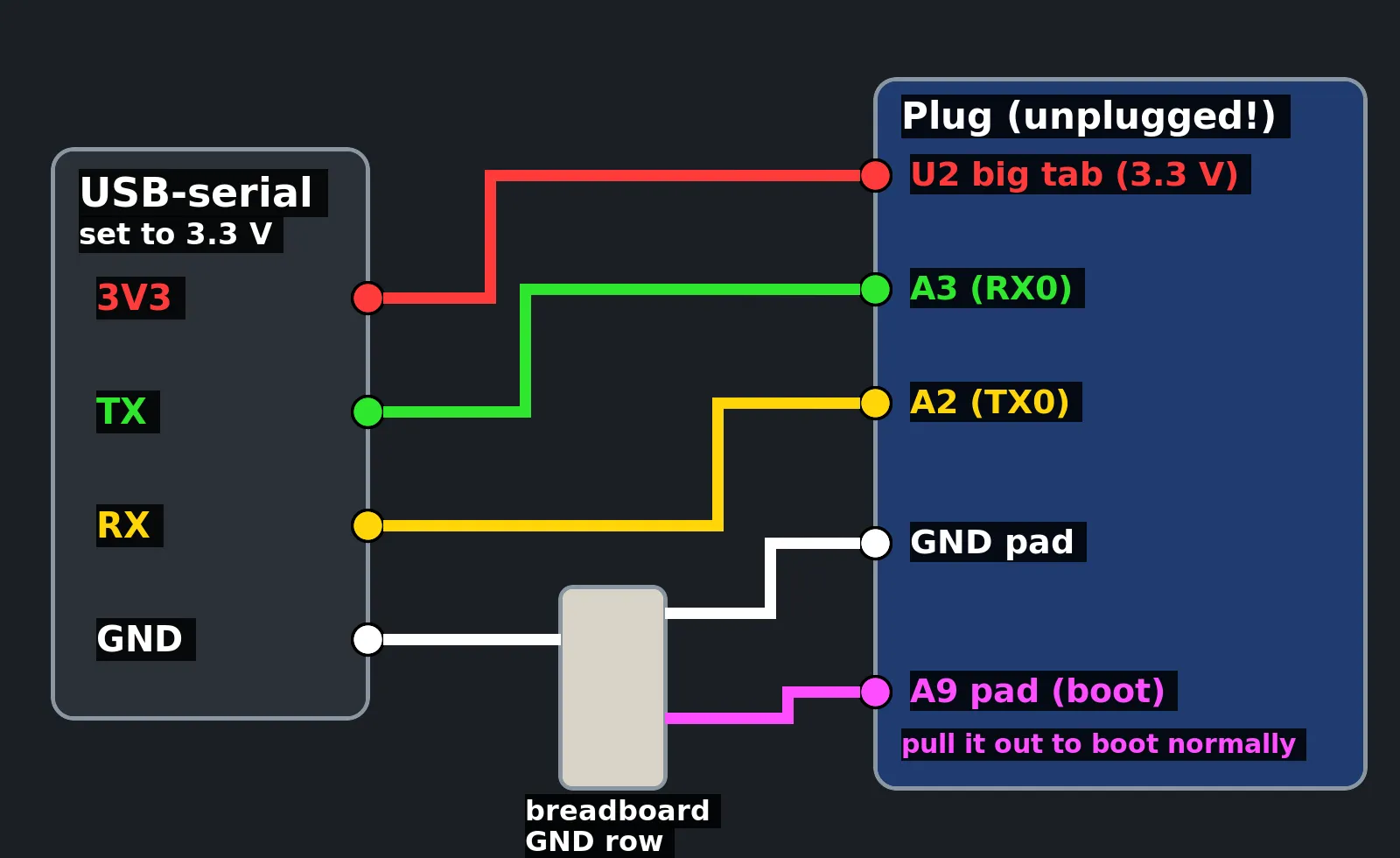
The same colours as in the photos above. TX goes to RX, and RX to TX.
- adapter
TX→A3, adapterRX→A2 - adapter
GND→ the GND row, and the plug’s ground wire into that row too A9→ the GND row- adapter
3V3→ the plug’s 3.3 V wire. With a separate supply: its 3.3 V to the plug, and its ground into the GND row
Plug the adapter into the laptop last. It shows up as /dev/ttyUSB0:
ls /dev/ttyUSB*Step 5: Save the factory firmware
Section titled “Step 5: Save the factory firmware”Before anything gets written, save what’s on it. That’s the only copy of Tuya’s firmware and its settings, and it’s where the pins come from in the next step.
ltchiptool flash read -d /dev/ttyUSB0 ln882h whdz05-factory.binltchiptool flash read -d /dev/ttyUSB0 ln882h whdz05-factory-2.bincmp whdz05-factory.bin whdz05-factory-2.bin && echo sameIt reads all 2 MiB. Reading twice and comparing catches a bad read.
If it can’t connect:
- swap
TXandRX - check
A9is in the GND row, then unplug the adapter and plug it in again:A9only counts at power-up - if it stops halfway, the 3.3 V is sagging: use the separate supply
Step 6: Find the pins
Section titled “Step 6: Find the pins”The plug needs six GPIOs: the relay, the button, the LED, and three for the BL0937 power meter chip (SEL, CF, CF1). Tuya keeps them in a config block in the flash, so the dump has them.
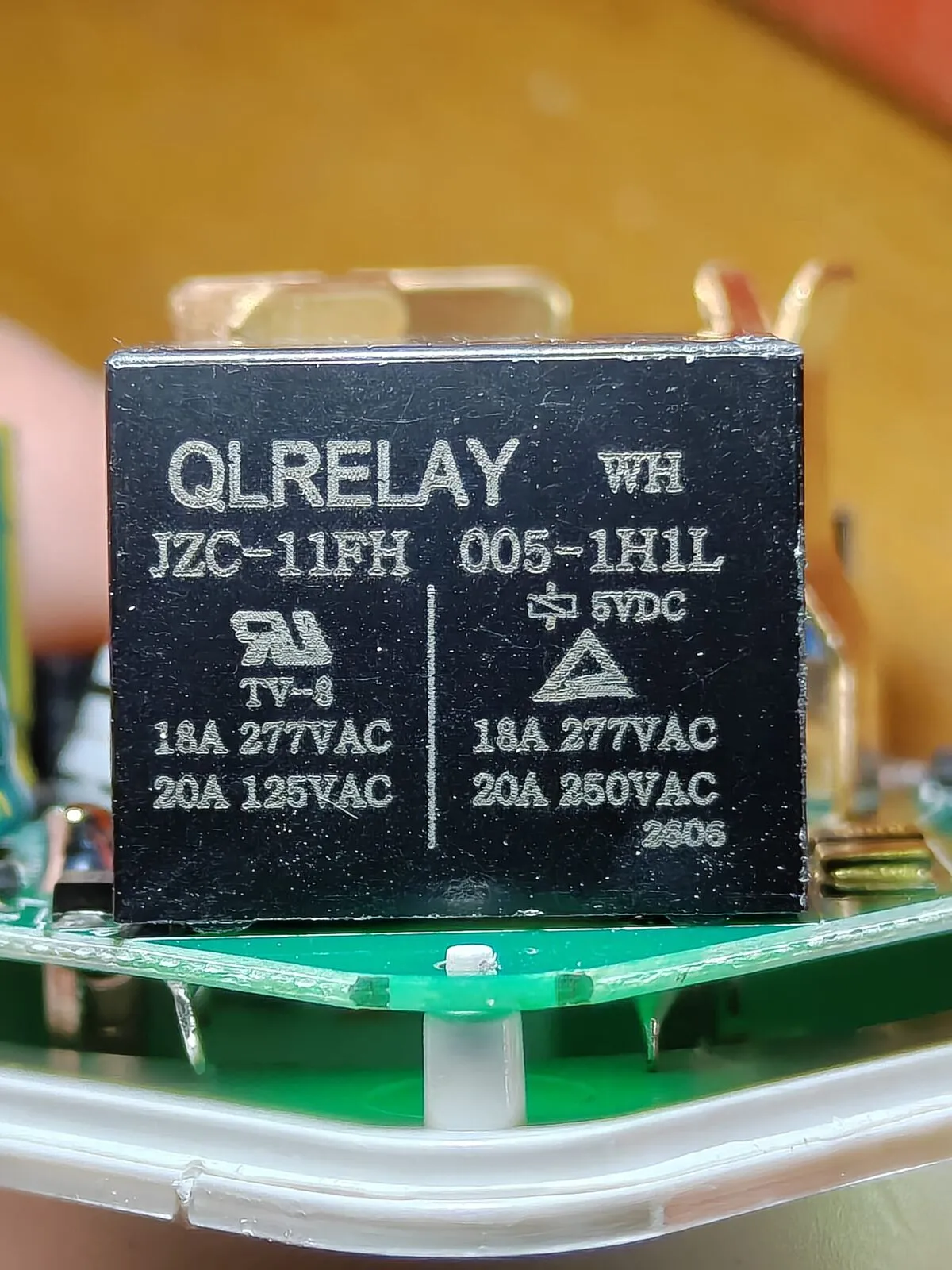
The relay. One GPIO switches it.
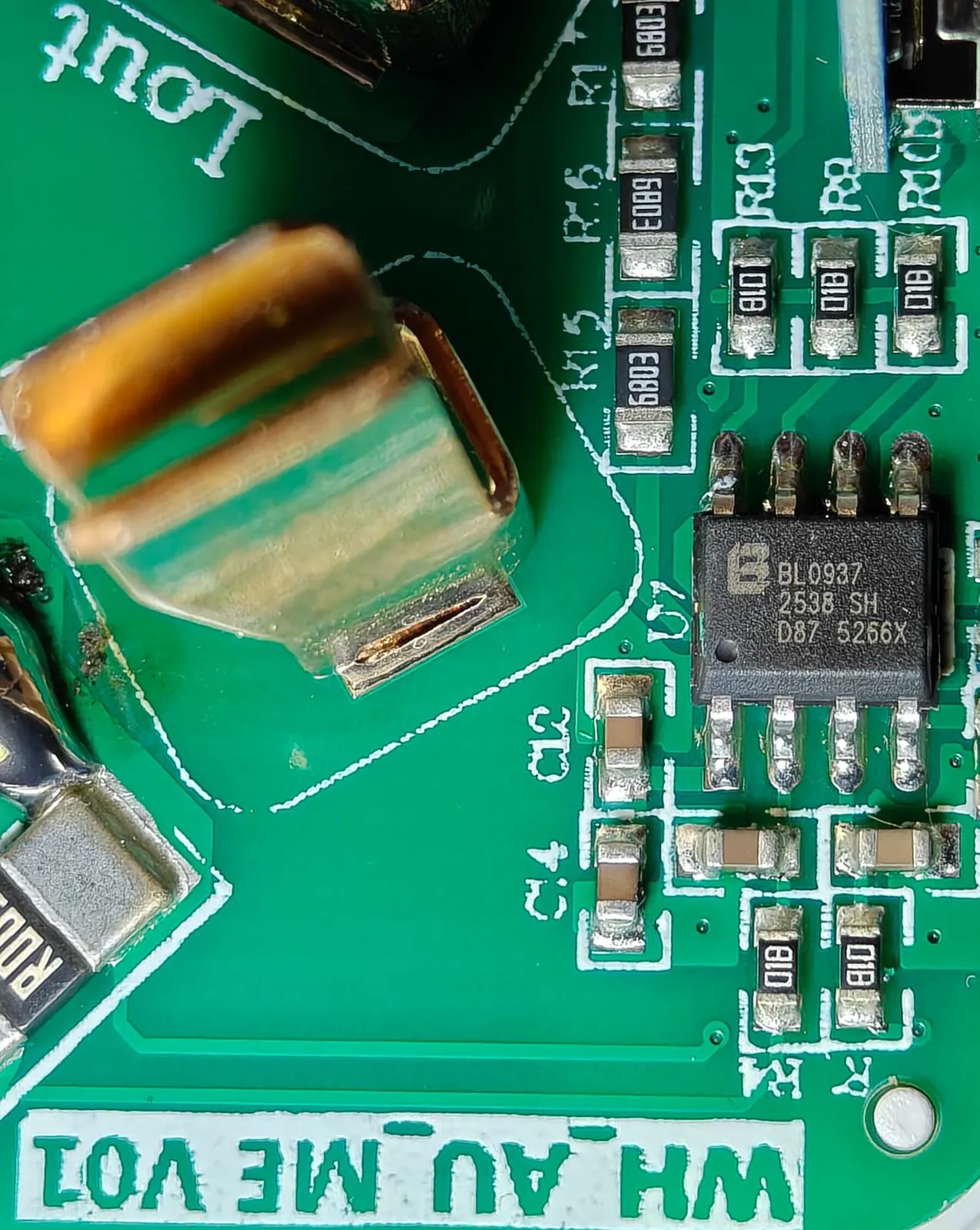
The BL0937 power meter chip. Three of its pins go to the LN882H: SEL, CF and CF1.
Not read yet. This table gets filled in from the dump:
| Function | GPIO |
|---|---|
| Relay | not known yet |
| Button | not known yet |
| LED | not known yet |
BL0937 SEL |
not known yet |
BL0937 CF |
not known yet |
BL0937 CF1 |
not known yet |
Step 7: The ESPHome config
Section titled “Step 7: The ESPHome config”The full config comes once the pins are known. The parts that matter:
ln882x:  board: generic-ln882h
sensor:  - platform: hlw8012    model: BL0937    sel_pin: # from the dump    cf_pin: # from the dump    cf1_pin: # from the dump    current_resistor: 0.001 ohm  # the shunt on the board is marked R001
Power metering on the LN882H didn’t work in ESPHome until January 2026 (issue 12647): the GPIO interrupts were broken in the LibreTiny version it used. Use a newer ESPHome.
Step 8: Flash ESPHome
Section titled “Step 8: Flash ESPHome”esphome compile whdz05-wifi-plug.yamlltchiptool flash write -d /dev/ttyUSB0 <path to firmware.uf2>esphome compile prints where it put firmware.uf2. Writing it also sets the chip’s OTA address, so later updates can go over Wi-Fi.
Step 9: First boot
Section titled “Step 9: First boot”-
Take
A9out of the GND row. -
Unplug the adapter and plug it in again. ESPHome starts.
-
Watch it join the Wi-Fi:
Terminal window esphome logs whdz05-wifi-plug.yaml --device /dev/ttyUSB0
If it resets when Wi-Fi starts, that’s the 3.3 V again: Wi-Fi draws a lot more than the flasher did.
Step 10: Close it up and add it to Home Assistant
Section titled “Step 10: Close it up and add it to Home Assistant”- Unplug the adapter, then unsolder the wires.
- Close the case.
- Plug it into the wall. It joins the Wi-Fi.
- In Home Assistant: Settings → Devices & services → Add integration → ESPHome, with the plug’s IP address.
Once it’s running, check the power reading against a known load.
Sources
Section titled “Sources”- LibreTiny: Lightning LN882x:
firmware.uf2, ltchiptool, and voltage drops as the usual flashing problem - LibreTiny: Generic LN882HKI:
A9to ground for download mode, the UART0 pins - ESPHome: LibreTiny platform: cloudcutter is for BK72xx only
- Elektroda: CozyLife B22 bulb with an LN882H:
A9stays grounded while you back up and flash - ESPHome issue 12647: BL0937 on LN882H, fixed in January 2026
Change history
- : First published.
This guide as plain Markdown, for LLMs and scripts: whdz05-wifi-plug-esphome.md. All posts: API and Markdown.
Text, photos and drawings: CC BY 4.0. Code: MIT. Share and adapt them, crediting HomeLab Guides (blog.jacq.cc). Licence and privacy